InfusedWoo Subscriptions
Sell Keap subscription plans through your WooCommerce store with recurring billing.
Sell Keap subscription plans through your WooCommerce store. Customers purchase subscription products at checkout, and InfusedWoo handles the recurring billing through Keap.
Navigate to InfusedWoo > Subscriptions > InfusedWoo to configure display settings.
Requirements
- The Keap Payment Gateway must be enabled
- Subscription plans must be created in Keap first
Setting Up Subscriptions
1. Create Plans in Keap
In your Keap account, go to E-Commerce > Products > Subscription Plans tab. Create a plan and set:
- Billing frequency (monthly, weekly, yearly, etc.)
- Billing cycle (number of recurring charges, or unlimited)
- Price per cycle
2. Link to WooCommerce Products
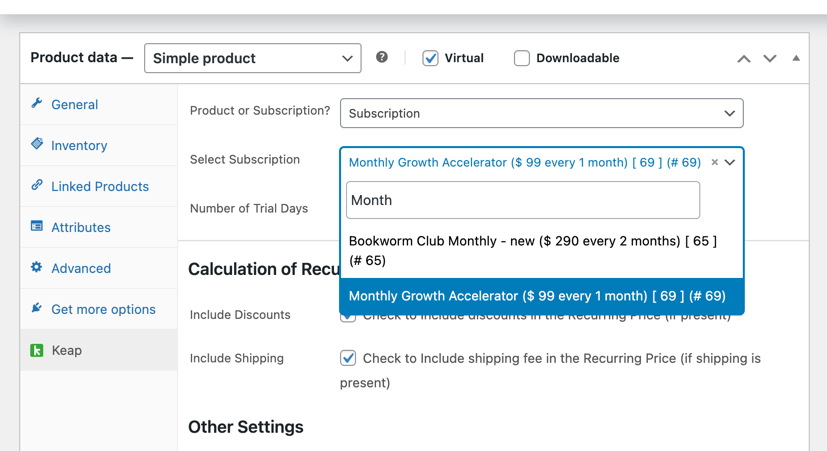
- Edit a WooCommerce product
- Go to Product Data > Keap tab
- Change “Product or Subscription?” to Subscription
- Select the Keap subscription plan
- Optionally set trial days and sign-up fee
3. Configure Display Settings
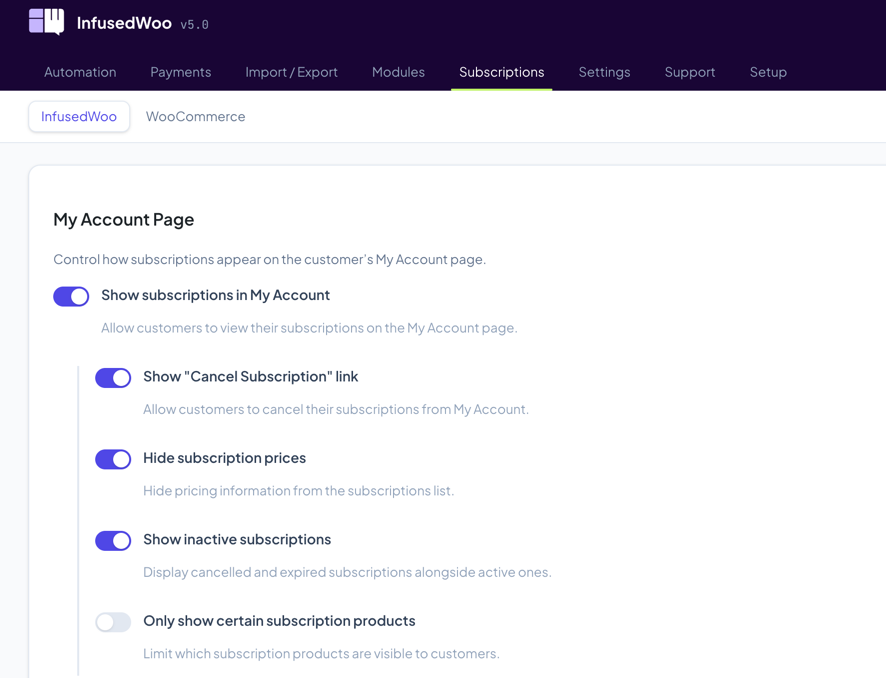
On the InfusedWoo Subscriptions settings page, configure how subscriptions appear on the customer’s My Account page.
My Account Settings
| Setting | Description |
|---|---|
| Show subscriptions in My Account | Allow customers to see their active subscriptions |
| Show “Cancel Subscription” link | Let customers cancel from their account page |
| Hide subscription prices | Remove pricing from the subscription list |
| Show inactive subscriptions | Display cancelled/expired subscriptions alongside active ones |
| Only show certain products | Limit which subscription plans are visible to customers |
Checkout Experience
When a customer adds a subscription product to their cart:
- They must use the Keap Payment Gateway (credit card)
- If trial days are configured, billing starts after the trial period
- If a sign-up fee is set, it’s charged at checkout in addition to the first payment (or as the only charge during trial)
Cancellation Automation
To trigger actions when a customer cancels their subscription:
- Go to Automation > Recipes and create a new recipe
- Set the trigger to User Action Trigger with “User cancelled an Infusionsoft Subscription”
- Add actions (apply tag, send email, trigger campaign, etc.)
- Save and activate
Troubleshooting
Subscriptions not showing at checkout
- Verify the Keap Payment Gateway is enabled
- Check that the product is linked to a valid Keap subscription plan
- Make sure the subscription plan is active in Keap
Customer can’t see subscriptions in My Account
- Enable “Show subscriptions in My Account” in the settings
- If using “Only show certain products”, verify the correct plans are selected