Domain Management
Activate, deactivate, block, and manage sites connected to your InfusedWoo license.
Each InfusedWoo license can be activated on a limited number of sites based on your plan. The domain management panel lets you control which sites use your license.
Accessing Domain Management
- Go to Portal > Licenses
- Find the license you want to manage
- Click the Sites button
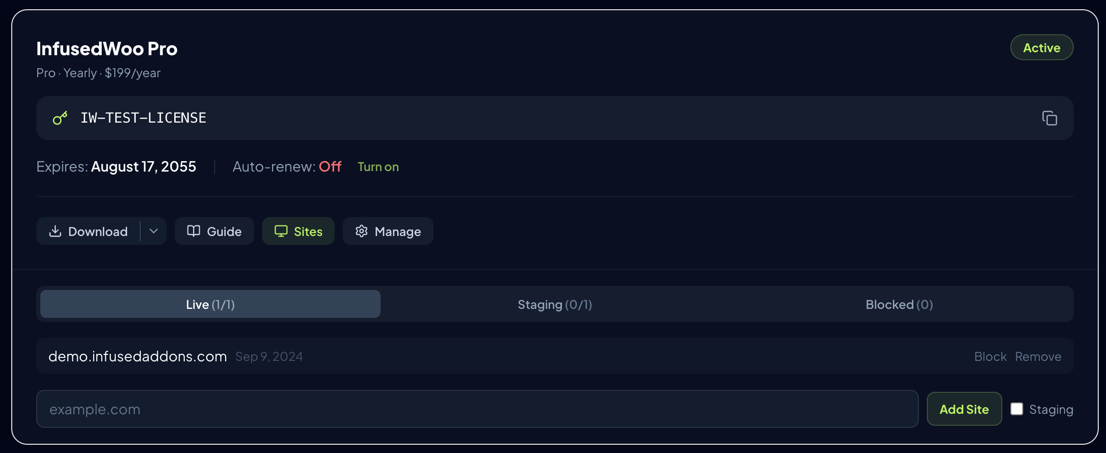
The panel shows three tabs: Live Sites, Staging Sites, and Blocked Domains.
Site Limits
Each plan includes a set number of live site activations:
| Plan | Live Sites | Staging Sites |
|---|---|---|
| Pro | 1 | 1 |
| Business | 5 | Unlimited |
| Agency | 25 | Unlimited |
Staging sites (development/test environments) do not count toward your live site limit.
How Activation Works
When you install InfusedWoo on a WordPress site and enter your license key:
- InfusedWoo sends the site’s domain to the licensing server
- The server checks if the domain is a live or staging site
- Live sites count toward your activation limit
- Staging sites (localhost, *.test, *.local, .staging., etc.) are activated freely
If you’ve reached your live site limit, the new activation will be denied until you deactivate an existing site.
Managing Live Sites
Live sites appear in the Live Sites tab with:
- Domain name
- Activation date
- Block button — Prevents this domain from using your license in the future
- Remove button — Deactivates the site, freeing up a slot

Removing a Site
Click Remove next to a domain to deactivate it. This:
- Frees up one activation slot
- The plugin on that site will stop receiving updates
- The site can be re-activated later (uses a new slot)
Blocking a Domain
Click Block next to a domain to prevent it from ever using your license again. This is useful if:
- You suspect unauthorized use of your key on an unknown domain
- A former client’s site should no longer have access
Blocked domains appear in the Blocked Domains tab. You can unblock them at any time.
Staging Sites
Staging and development sites are automatically detected and do not count toward your live site limit. InfusedWoo recognizes staging sites by domain patterns:
localhost,127.0.0.1*.test,*.local,*.dev*.staging.*,*.stage.**.wpengine.com,*.kinsta.cloud,*.pantheonsite.io*.myshopify.com
If a staging site is not automatically detected, it requires admin approval. You’ll see a Pending approval badge next to it. If approved, you’ll receive a confirmation email within 24 hours. If you don’t hear back after 24 hours, the request is considered declined.
To increase the chance of approval:
- Use a domain that clearly indicates staging (e.g.,
staging.yoursite.com,dev.yoursite.com) - Make sure the site is not publicly searchable (block search engines with
noindex) - If your staging site doesn’t follow typical naming conventions, contact support after adding the domain to explain your setup

Blocked Domains
The Blocked Domains tab shows all domains you’ve blocked. Each entry shows:
- Domain name
- Who blocked it (you or an admin)
- Unblock button to restore access

Tips
- Moving to a new domain? Remove the old site first, then activate on the new domain
- Rebuilding a site? Staging environments (localhost, *.test) don’t use activation slots
- Lost track of activations? The Sites panel shows all domains — remove any you no longer use
- Unauthorized use? Block the domain and change your license key by contacting support