Updates
Check for and install InfusedWoo plugin updates from your WordPress admin.
Updates
Check for and install InfusedWoo updates directly from your WordPress admin. A valid license key is required.
Navigate to InfusedWoo > Settings > Updates.
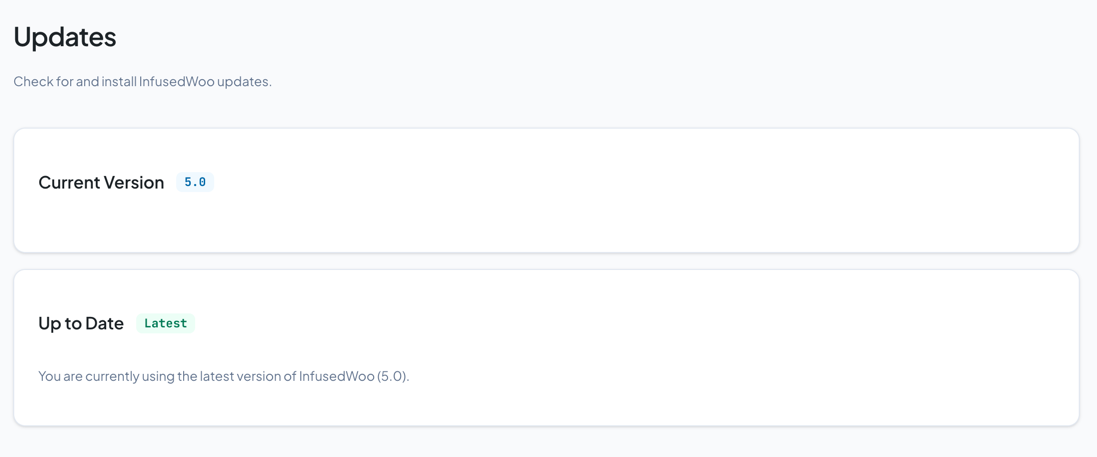
Checking for Updates
The Updates page shows:
- Current version — Your installed InfusedWoo version
- Latest version — The newest version available
- Update available — Whether an update is ready to install
- Changelog — What’s new in the latest version
Click Check for Updates to refresh the version check.
Installing Updates
If an update is available:
- Click the Update link (or go to WordPress > Dashboard > Updates)
- WordPress downloads and installs the new version
- Your settings and data are preserved
Before Updating
- Back up your site — Use your hosting provider’s backup tool or a plugin like UpdraftPlus
- Review the changelog — Check for breaking changes or new requirements
- Test on staging first — If you have a staging site, update there first
Automatic Updates
InfusedWoo integrates with WordPress’s built-in update system. If you have automatic plugin updates enabled in WordPress, InfusedWoo will update automatically.
Troubleshooting
”No update information available”
- Verify your license key is valid in Settings > License
- Clear the cache in Settings > Cache
- Check that your server can reach
infusedaddons.com(not blocked by firewall)
Update fails
- Check that your WordPress file permissions allow writing to the plugins directory
- Try updating manually: download the latest zip from infusedwoo.com/portal and upload via Plugins > Add Plugin > Upload