Logs
Configure logging levels and view diagnostic logs for troubleshooting.
Logs
InfusedWoo logs errors and API activity to help troubleshoot issues. Configure the logging level and view logs from this page.
Navigate to InfusedWoo > Settings > Logs.
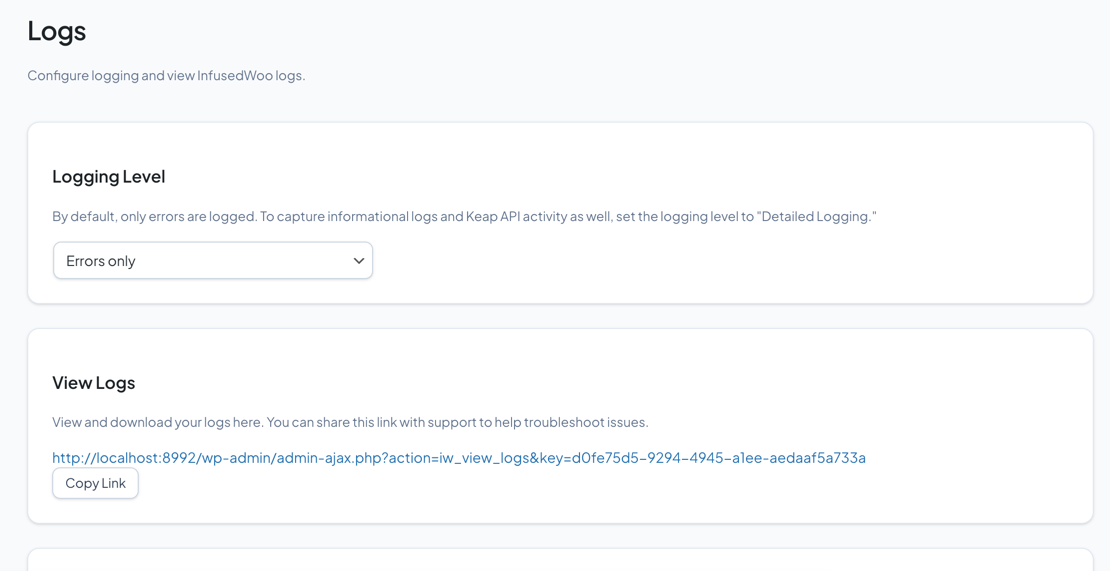
Logging Level
| Level | What gets logged |
|---|---|
| Errors only (default) | Only errors and failures |
| Detailed Logging | Errors plus informational messages (API calls, sync activity) |
| Disabled | No logging |
Use “Detailed Logging” temporarily when troubleshooting. Switch back to “Errors only” afterward to avoid large log files.
Viewing Logs
The View Logs section provides a shareable URL to your log file. You can:
- Click the URL to view logs in your browser
- Share the URL with InfusedWoo support to help troubleshoot issues
The log URL contains a unique key that changes each time you clear logs, so previously shared links stop working.
Clearing Logs
Click Clear Logs to delete all log entries and regenerate the log access key. This also invalidates any previously shared log URLs.
Tips
- Share your log URL with support when filing a ticket — it gives them direct access to your error logs
- Enable “Detailed Logging” before reproducing an issue, then check the logs for relevant entries
- Large log files can slow down the log viewer — clear logs periodically