Installation & Setup
Download, install, activate your license, and connect InfusedWoo to your Keap account step by step.
This guide walks you through downloading, installing, and configuring InfusedWoo to connect your WooCommerce store with Keap.
Requirements
- WordPress 5.0 or higher
- WooCommerce 6.0 or higher
- PHP 8.0 or higher
- An active Keap (Infusionsoft) account
- An InfusedWoo license key (from infusedwoo.com/portal)
Step 1: Download & Install
- Log in to the InfusedWoo Customer Portal
- Download the latest InfusedWoo plugin zip file
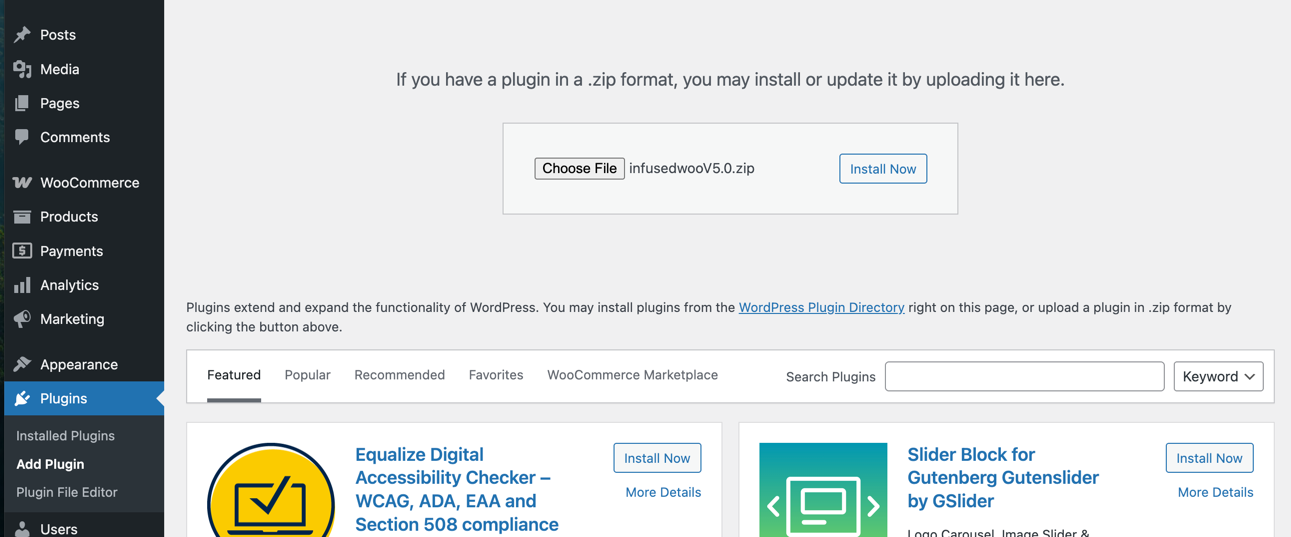
- In your WordPress admin, go to Plugins > Add Plugin > Upload Plugin
- Upload the zip file and click Install Now
- Click Activate
Step 2: WooCommerce Check
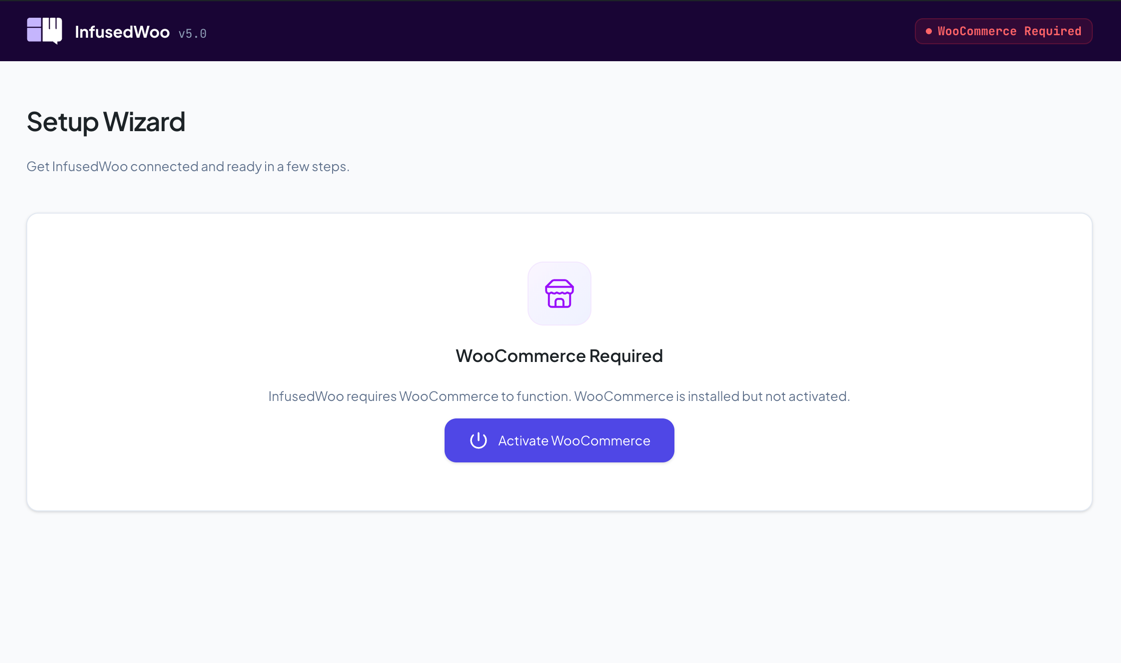
When you first open InfusedWoo after installation, the setup wizard checks that WooCommerce is installed and active.
- If WooCommerce is already active, you’ll skip straight to the license step
- If WooCommerce is installed but not activated, click Activate WooCommerce and the wizard will activate it for you
- If WooCommerce is not installed, click Install & Activate WooCommerce to install it directly from the wizard
Step 3: Activate Your License
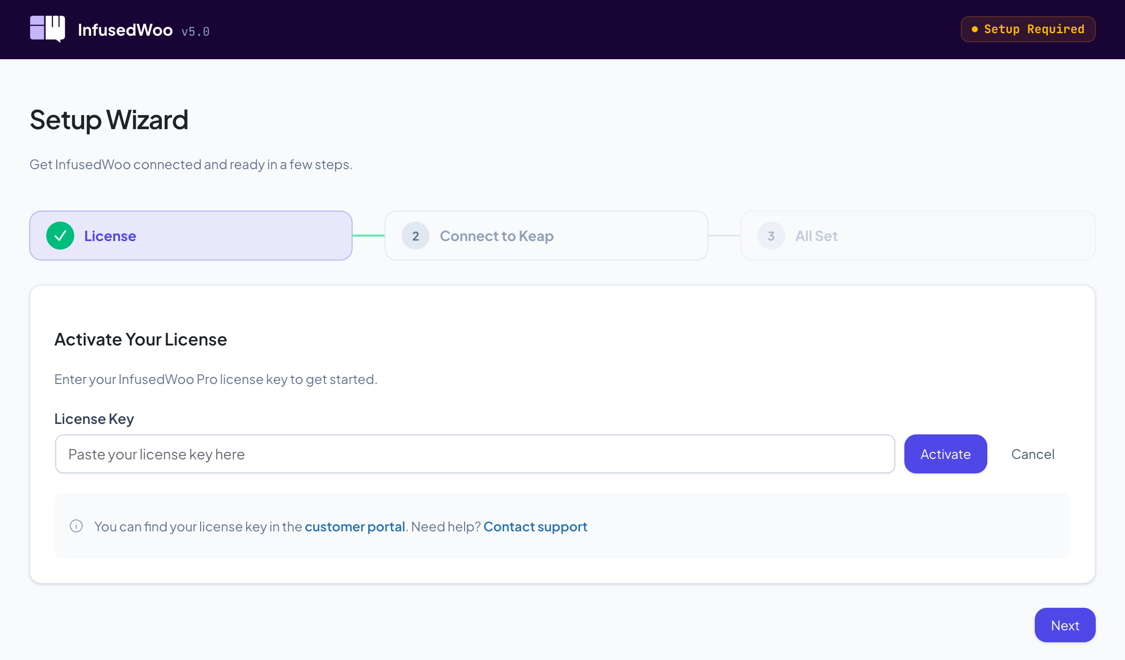
Enter your InfusedWoo license key to activate. You can find your key in the customer portal.
- Navigate to InfusedWoo in your WordPress admin sidebar
- The Setup Wizard opens on the License step
- Paste your license key and click Activate
- Once validated, the wizard advances to the next step
License Statuses
| Status | Meaning |
|---|---|
| Valid | Your license is active and working |
| Invalid | The license key is not recognized |
| Expired | Your license has expired. Renew in the customer portal. Renew within 30 days for a 50% discount |
| Conflict | Duplicate site activation detected. Deactivate the other site or contact support |
| Domain Limit Exceeded | Your license has reached its domain limit. Deactivate other sites first |
| Blocked | This site is not allowed to use this key. Contact support |
Step 4: Connect to Keap
InfusedWoo needs to connect to your Keap account to sync data. There are three connection methods:
OAuth (Recommended)
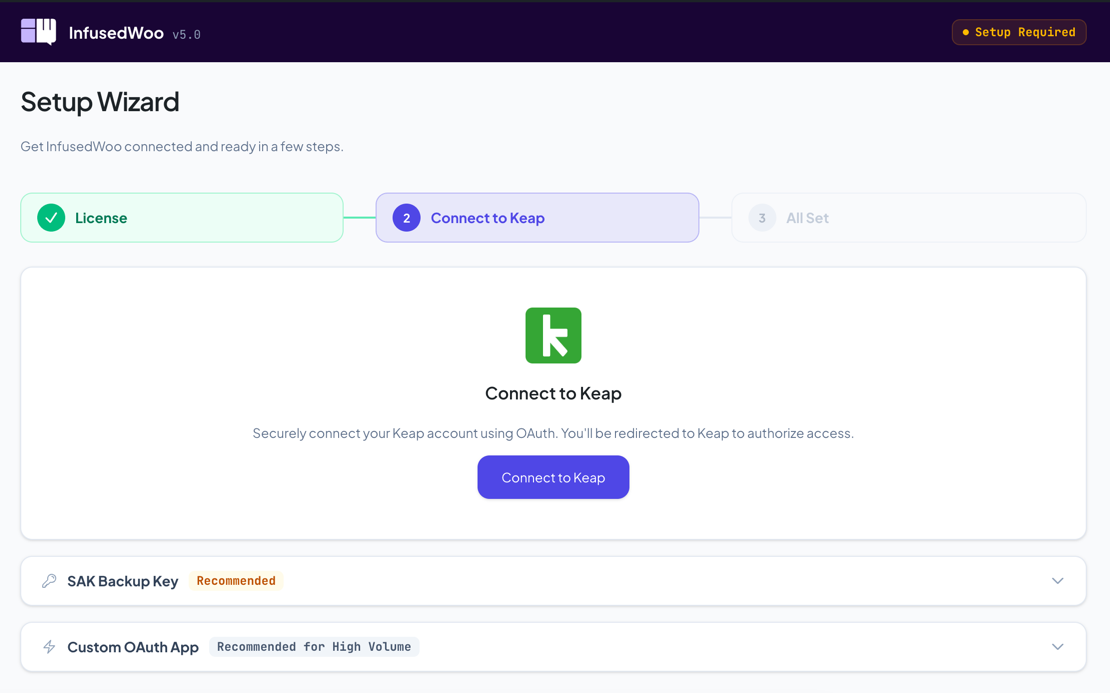
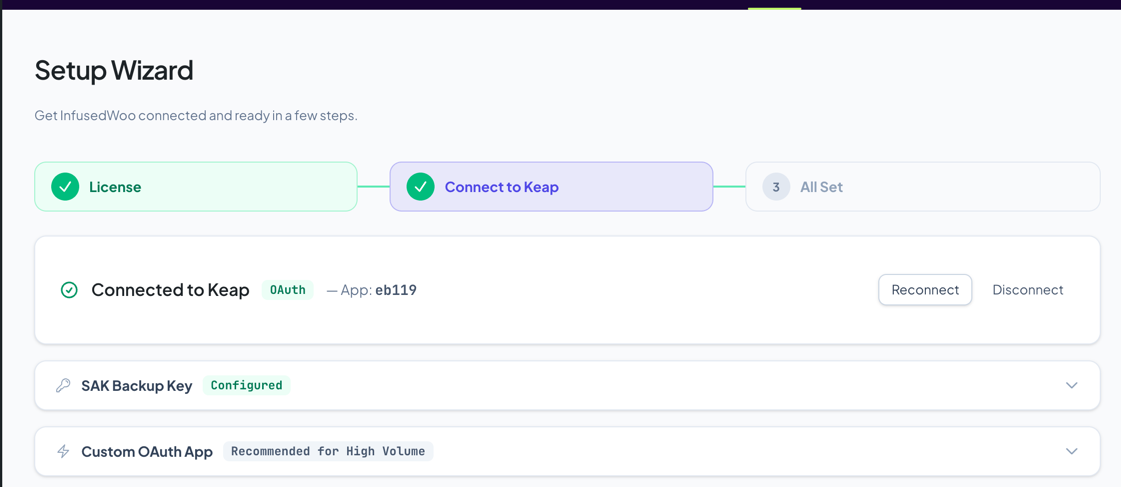
The simplest and most common way to connect. You’ll be redirected to Keap to authorize access.
- Click Connect to Keap
- You’ll be redirected to the Keap login page
- Log in and authorize InfusedWoo
- You’ll be redirected back to InfusedWoo with the connection established
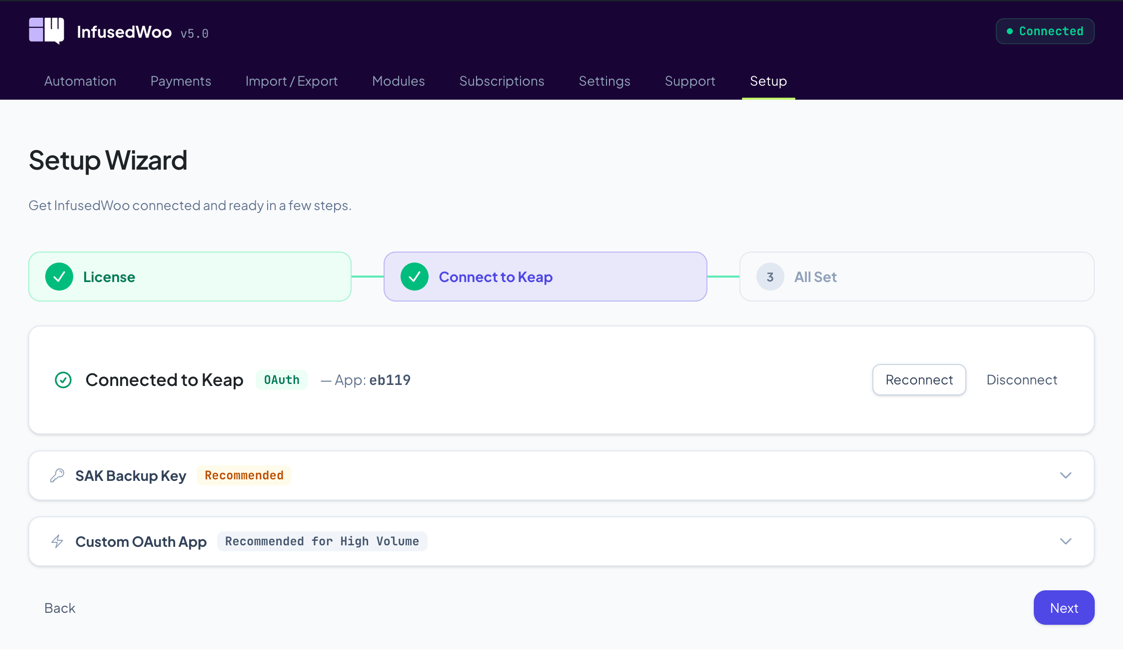
SAK Backup Key (Recommended)
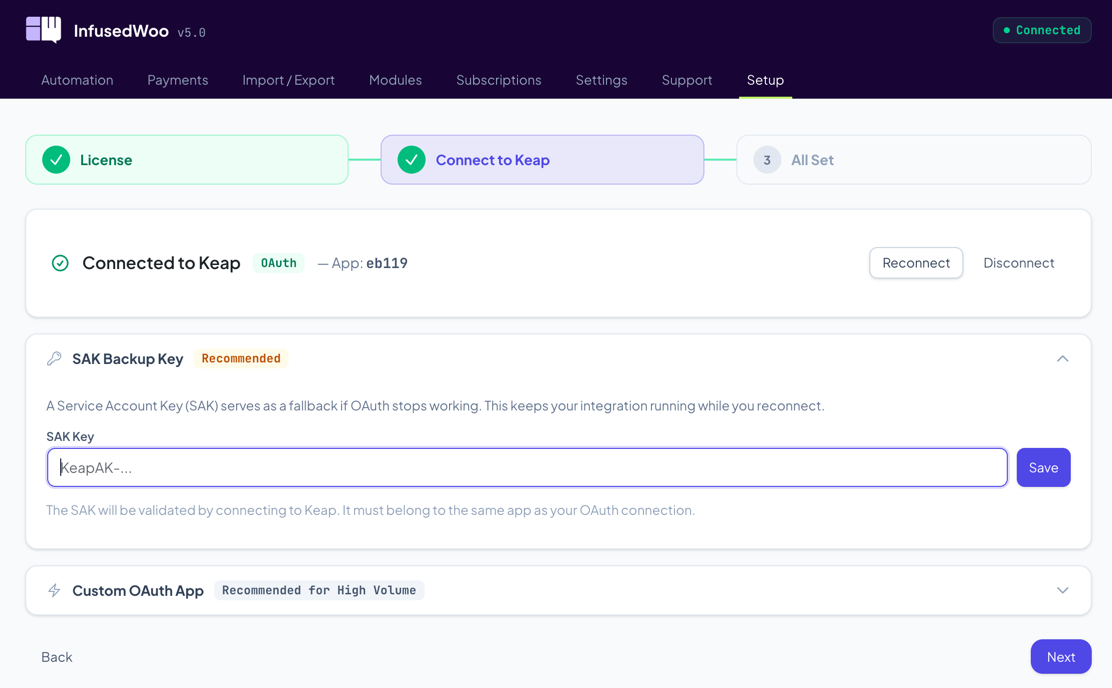
A Service Account Key (SAK) serves as a fallback if your OAuth connection stops working. This keeps your store’s integration running while you reconnect.
- In the SAK Backup Key section, click to expand
- Enter your SAK key (starts with
KeapAK-) - Click Save — InfusedWoo validates the key by connecting to Keap and verifying it belongs to the same app as your OAuth connection
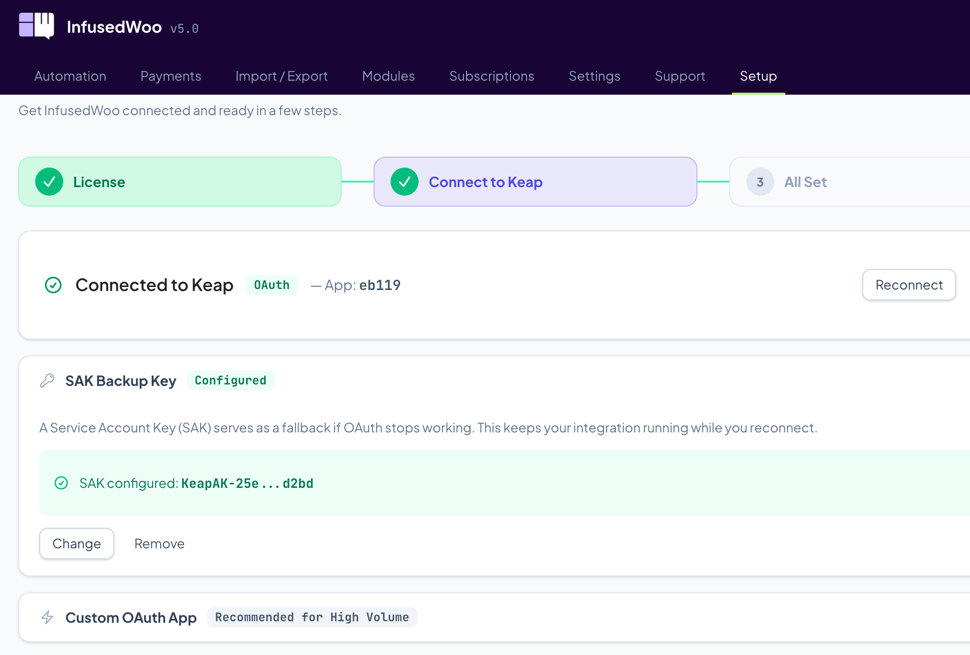
Where to get a SAK: Log in to your Keap account, go to Settings > API > Service Account Keys and create a new key.
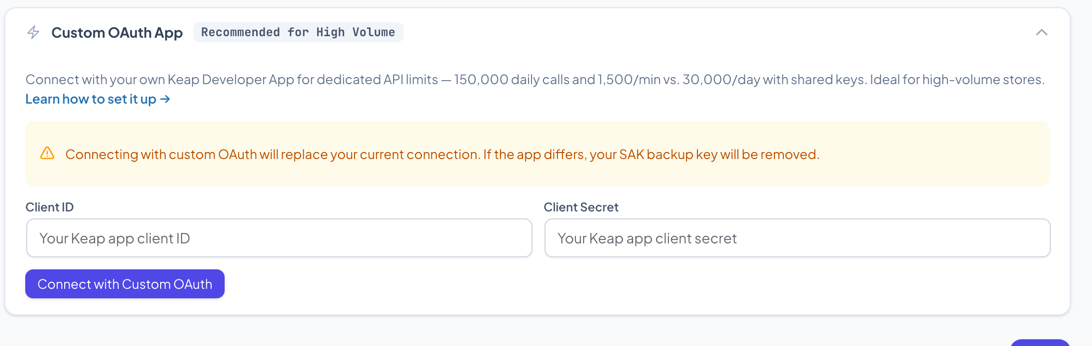
Custom OAuth App (For High Volume Stores)
For stores processing high volumes of API calls, you can connect with your own Keap Developer App for dedicated API limits. See the Custom OAuth Guide for detailed setup instructions.
Step 5: All Set!
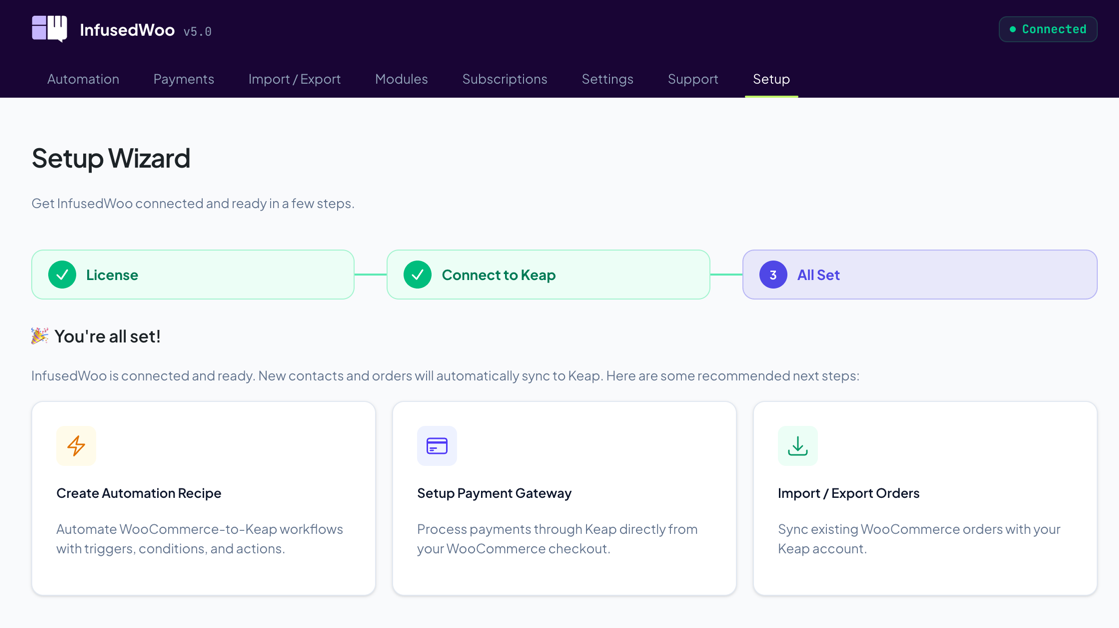
Once connected, the wizard shows a confirmation that InfusedWoo is ready. New contacts and orders will automatically sync to Keap. The wizard also suggests recommended next steps:
- Create Automation Recipe — Set up WooCommerce-to-Keap workflows with triggers, conditions, and actions
- Setup Payment Gateway — Process payments through Keap directly from your WooCommerce checkout
- Import/Export Orders — Sync existing WooCommerce orders with your Keap account
Managing Your Connection
After initial setup, you can manage your Keap connection anytime from InfusedWoo > Settings > Keap Connection.
From this page you can:
- Reconnect — Re-authorize OAuth to refresh your tokens
- Disconnect — Remove OAuth credentials (if SAK is configured, it becomes the active connection)
- Add/Change/Remove SAK — Manage your backup key
- Switch to Custom OAuth — Upgrade to dedicated API limits
- Switch to Standard OAuth — Downgrade from custom OAuth
Connection Hierarchy
InfusedWoo uses this priority for connecting to Keap:
- OAuth (primary) — highest API limits with Custom OAuth, or standard limits
- SAK (secondary) — works as a standalone connection or as a backup when OAuth fails
If OAuth fails (e.g., token expired and refresh fails), InfusedWoo automatically switches to your SAK backup key. You’ll see an amber banner:
“OAuth connection failed. Using SAK as fallback. Fix connection”
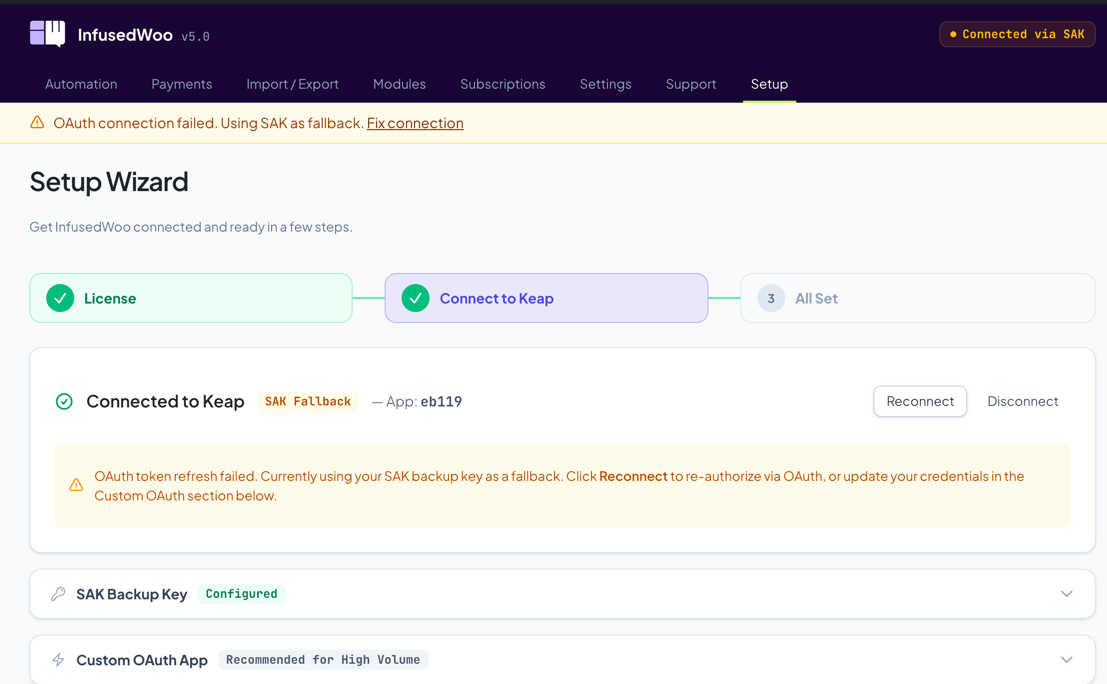
Click Fix connection or go to Settings > Keap Connection to reconnect via OAuth.
Header Status Badge
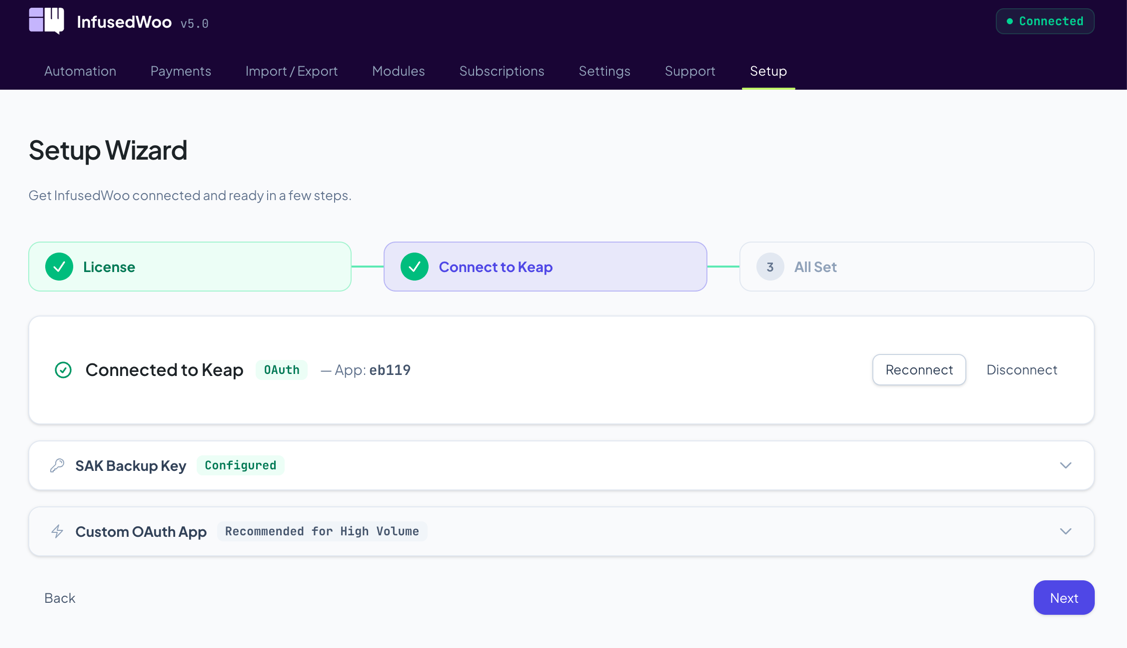
The header badge in the top-right corner shows your current connection status at a glance:
| Badge | Meaning |
|---|---|
| Connected (green) | OAuth is active and working |
| Custom OAuth (purple) | Connected via your own OAuth app |
| Connected via SAK (amber) | OAuth failed, using SAK fallback |
| Setup Required (amber) | License or connection needs setup |
| License Invalid (red) | License needs renewal or replacement |
| Disconnected (red) | No connection to Keap |
Upgrading from a Previous Version
If you’re upgrading from InfusedWoo 4.4.x or earlier, your existing settings are automatically preserved:
- License key — Recognized and validated automatically
- OAuth connection — Continues working with your existing tokens
- Legacy API key (SAK/PAT) — Automatically migrated to the new connection system. If you also had OAuth configured, your API key is registered as a SAK backup
What’s New in the Setup Experience
- Setup Wizard — Guided 3-step setup for new installations and upgrades
- SAK Backup Key — Keeps your integration running if OAuth fails
- Custom OAuth — Easy setup for high-volume stores needing higher API limits
- Keap Connection page — Centralized connection management under Settings
- Smart lock — If your license expires or Keap is disconnected, InfusedWoo locks to the setup page until resolved. If the license server is temporarily unavailable, InfusedWoo continues working (grace period)
Troubleshooting
License Issues
- “License activation failed: conflict” — You have duplicate site activations. Go to infusedwoo.com/portal to manage your active sites
- License server unavailable — InfusedWoo will continue working with a grace period. Your license will re-validate automatically when the server is back
Connection Issues
- Tags/data not loading — Check your connection in Settings > Keap Connection. Try clicking Reconnect
- SAK validation fails — Make sure your SAK starts with
KeapAK-and belongs to the same Keap app as your OAuth connection - “SAK app mismatch” — Your SAK belongs to a different Keap app than your OAuth connection. Generate a SAK from the same app