Thank You Pages
Redirect customers to custom thank you pages after purchase based on order conditions.
Redirect customers to custom thank you pages after purchase based on order conditions. You can create multiple overrides with different URLs and conditions — the topmost matching override wins.
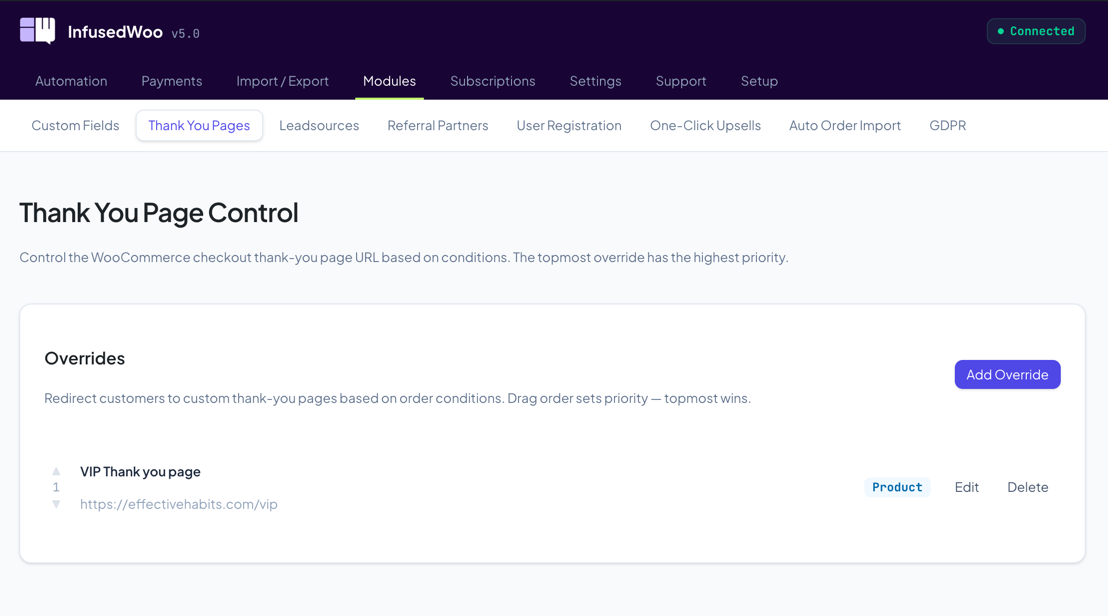
Navigate to InfusedWoo > Modules > Thank You Pages.
How It Works
Instead of WooCommerce’s default order-received page, InfusedWoo can redirect customers to a custom URL. You create overrides — each has a name, URL, and one or more conditions. After checkout, InfusedWoo evaluates overrides from top to bottom and redirects to the first one whose conditions all pass.
Creating an Override
- Click Add Override
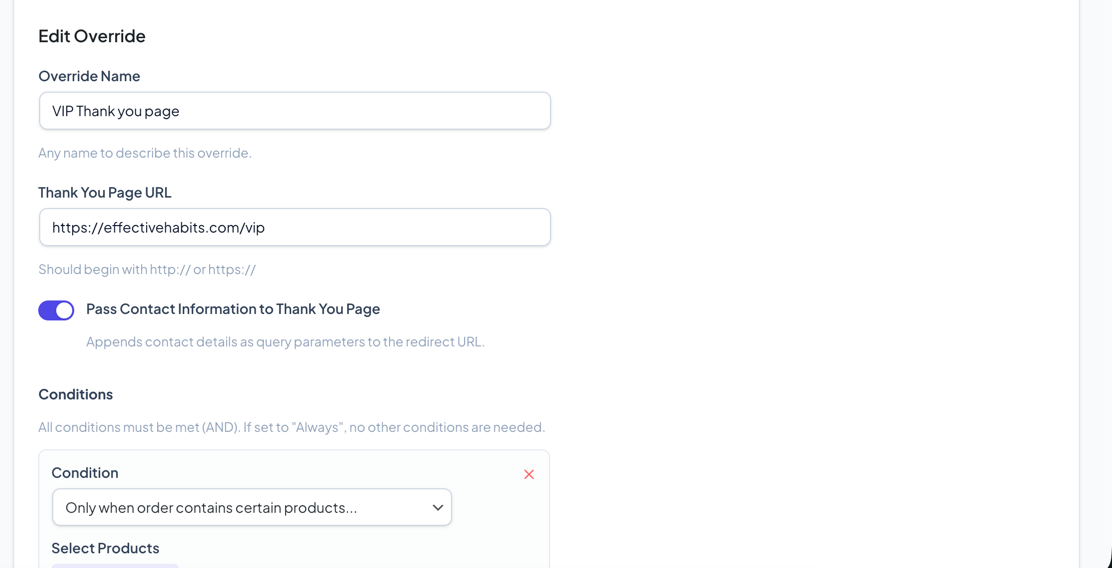
- Enter a name (for your reference, e.g., “VIP Thank You Page”)
- Enter the Thank You Page URL (must start with
http://orhttps://) - Optionally enable Pass Contact Information to append customer data as query parameters
- Set one or more conditions (or leave as “Always” to match all orders)
- Click Create Override
Conditions
Each override can have one or more conditions. All conditions must be met (AND logic).
| Condition | What it checks |
|---|---|
| Always | Redirects all customers (no condition) |
| Order contains certain products | Order has specific WooCommerce products |
| Order contains products from categories | Order has products in certain categories |
| Total order value is more than | Order total exceeds an amount |
| Total order value is less than | Order total is below an amount |
| Total item count is more than | Number of items exceeds a count |
| Total item count is less than | Number of items is below a count |
| Coupon code is applied | A specific coupon was used (comma-separated for multiple) |
| Payment gateway used | A specific payment gateway was selected |
Multiple Conditions
Click + Add Condition to add more conditions. All conditions must pass for the override to trigger. For example: “Order value > $100 AND order contains products from ‘Premium’ category.”
Pass Contact Information
When the Pass Contact Information toggle is on, InfusedWoo appends customer and order data as URL query parameters to the redirect URL.
Customer Data
| Parameter | Value |
|---|---|
FirstName | Billing first name |
LastName | Billing last name |
Email | Billing email |
Phone | Billing phone |
Billing Address
| Parameter | Value |
|---|---|
StreetAddress1 | Billing address line 1 |
StreetAddress2 | Billing address line 2 |
City | Billing city |
State | Billing state |
Country | Billing country |
PostalCode | Billing postal code |
Shipping Address
| Parameter | Value |
|---|---|
Address2Street1 | Shipping address line 1 |
Address2Street2 | Shipping address line 2 |
City2 | Shipping city |
State2 | Shipping state |
Country2 | Shipping country |
PostalCode2 | Shipping postal code |
Order Data
| Parameter | Value |
|---|---|
WooOrderId | WooCommerce order ID |
InfusionOrderId | Keap order ID (if synced) |
contactId | Keap contact ID (if available) |
Example Redirect
https://yoursite.com/thank-you/?FirstName=John&LastName=Doe&[email protected]&WooOrderId=456&InfusionOrderId=789&contactId=123...
You can read these parameters on your thank you page using the [iw_get_val] shortcode:
Thanks, [iw_get_val field="FirstName"]! Your order #[iw_get_val field="WooOrderId"] is confirmed.
Customizing Parameter Names
Use the iw_ty_variable_key filter to rename any parameter key:
add_filter('iw_ty_variable_key', function($key) {
    if ($key === 'FirstName') return 'first_name';
    return $key;
});
Priority & Ordering
Overrides are evaluated top to bottom. Use the up/down arrows on each row to reorder. The first override whose conditions all pass wins — no further overrides are checked.
Tip: Put specific overrides (e.g., “VIP products”) above general ones (e.g., “Always redirect”).
Managing Overrides
- Edit — Click Edit to modify an override’s name, URL, conditions, or pass-through setting
- Delete — Click Delete to permanently remove an override
- Reorder — Use the up/down arrows to change priority
Use Cases
- Redirect VIP product buyers to a membership access page
- Send high-value orders ($500+) to a personalized thank you page
- Route coupon users to a special offer page
- Show different pages based on payment method (e.g., separate page for bank transfer with payment instructions)
- Always redirect to a branded thank you page instead of the default WooCommerce one