Automation Recipes
Create powerful WooCommerce-to-Keap workflows using triggers, conditions, and actions.
What Are Automation Recipes?
Automation Recipes let you build workflows between WooCommerce and Keap using a straightforward pattern:
- Trigger — When something happens (e.g., a purchase is completed)
- Conditions — Optionally check whether to proceed (e.g., cart total > $50)
- Actions — Do something (e.g., apply a Keap tag, send an email)
Navigate to InfusedWoo > Automation > Recipes to manage your recipes.
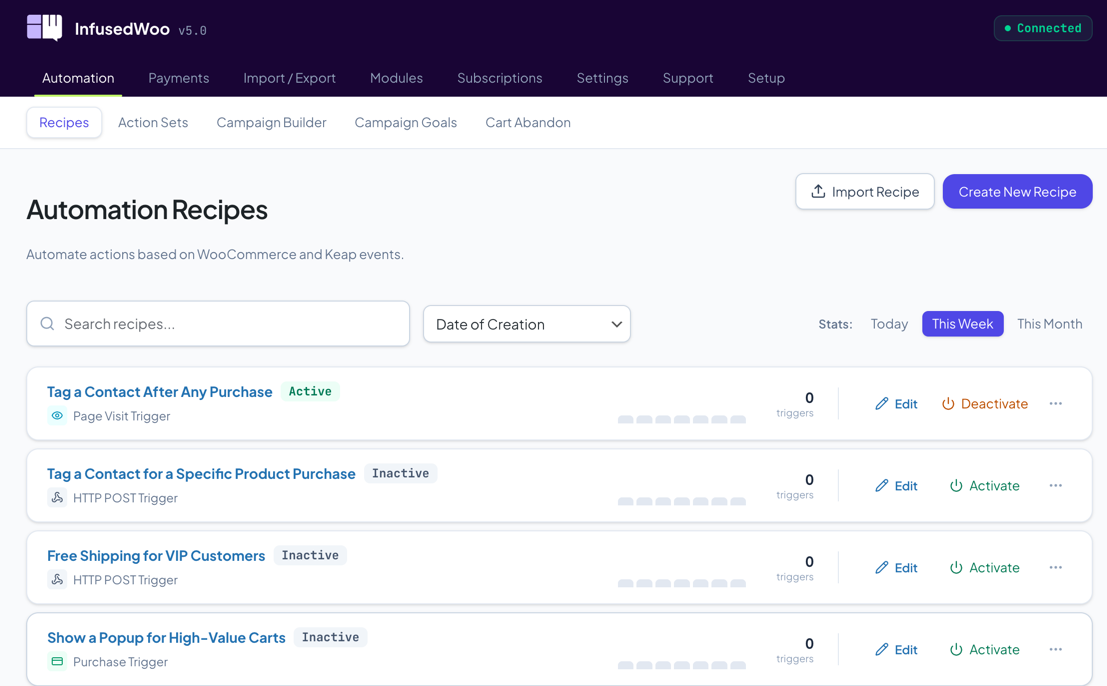
Recipe Statuses
Each recipe has one of three statuses:
- Active — The recipe is live and will fire when its trigger occurs.
- Inactive — The recipe is paused and will not fire.
- Has Errors — One or more conditions or actions have configuration errors. The recipe will not fire until all errors are resolved.
Creating Your First Recipe
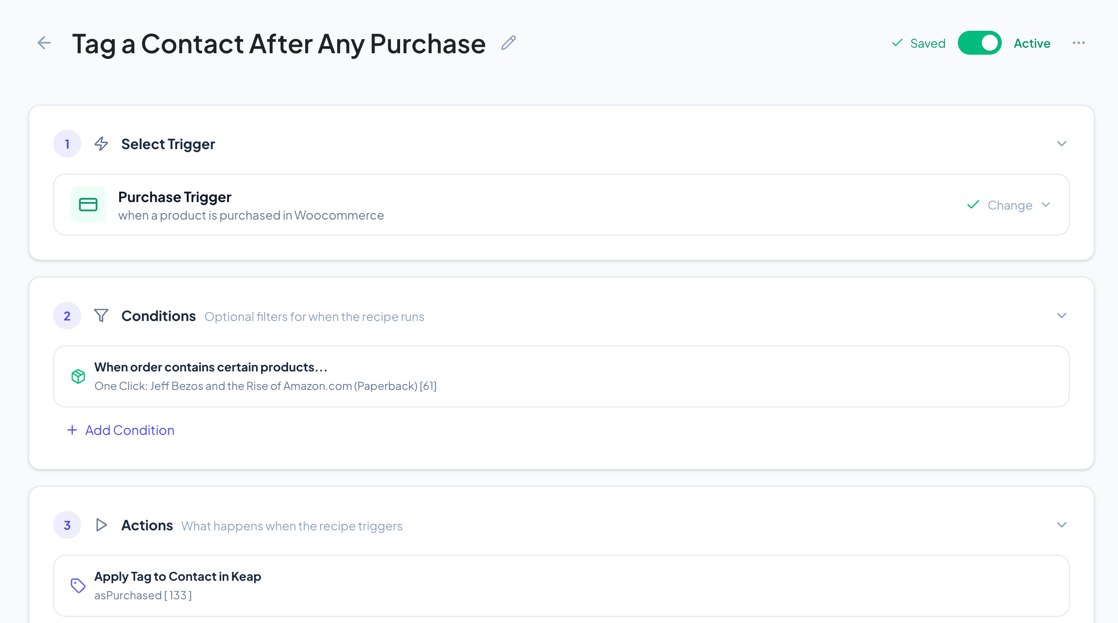
- Click Create New Recipe
- Name your recipe by clicking the pencil icon
- Step 1: Choose a trigger (e.g., “Purchase Trigger”)
- Step 2: Add conditions if needed (e.g., “Cart total > $50”)
- Step 3: Add actions (e.g., “Apply Keap Tag”, “Send Email”)
- Toggle the switch to Active
Recipes auto-save as you edit — there is no save button.
Learn More
Core Concepts
- Triggers Guide — All available triggers and how to configure them
- Conditions Guide — Filter when recipes execute using cart, product, contact, and advanced conditions
- Actions Guide — All available actions including Keap, cart, communication, and legacy actions
- Merge Fields — Insert dynamic values into action fields
Guides
- Recipe Examples — Common recipe patterns and use cases
- Advanced Features — Power-user features and complex workflows
- Troubleshooting — Diagnose and fix common issues
Related
- Campaign Builder Goals — Trigger Keap Campaign Builder goals from WooCommerce
- Action Sets — Reusable groups of actions
- Cart Abandon — Recover abandoned carts with automated follow-ups