Keap Payment Gateway
Accept credit card payments at WooCommerce checkout using your Keap merchant account.
The Keap Payment Gateway lets you accept credit card payments at WooCommerce checkout using your Keap merchant account. This is required for Payment Plans and InfusedWoo Subscriptions.
Navigate to InfusedWoo > Payments > Keap Gateway to check the gateway status.
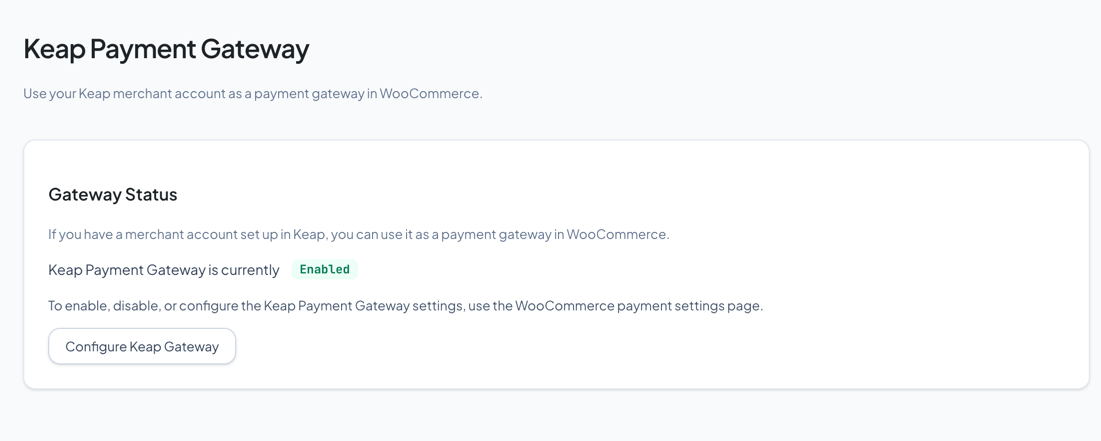
Status Page
This page shows whether the gateway is currently enabled or disabled. The actual gateway configuration is managed in WooCommerce’s payment settings.
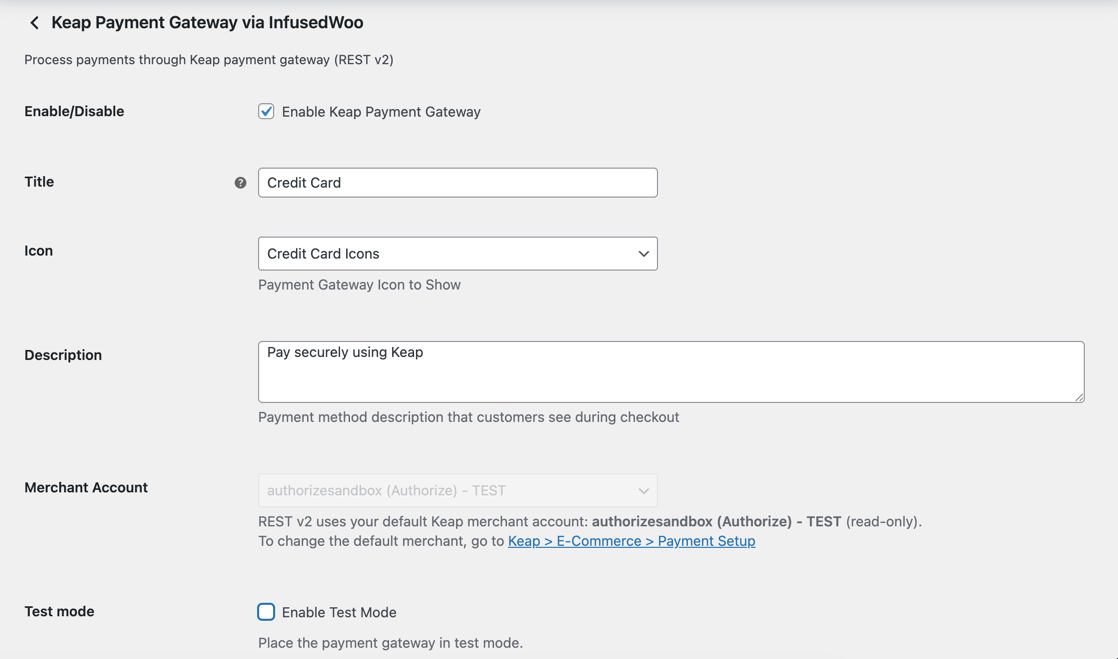
Click Configure Keap Gateway to open WooCommerce > Settings > Payments > Keap Credit Card, where you can:
- Enable or disable the gateway
- Set the gateway title shown at checkout
- Configure test/sandbox mode
- Enable saved cards (customers can save cards for future purchases)
- Configure the modal checkout appearance
Requirements
- An active Keap account with a merchant account configured (Keap > Settings > E-Commerce > Payment Methods)
- InfusedWoo connected to Keap via OAuth or SAK
Checkout Experience
When enabled, customers see “Credit Card (Keap)” as a payment option at checkout. Card details are entered in a secure modal popup powered by Keap’s payment embed. See Payment Modal Styling for customization options.
Supported cards: Visa, Mastercard, American Express, Discover, JCB, Diners Club.
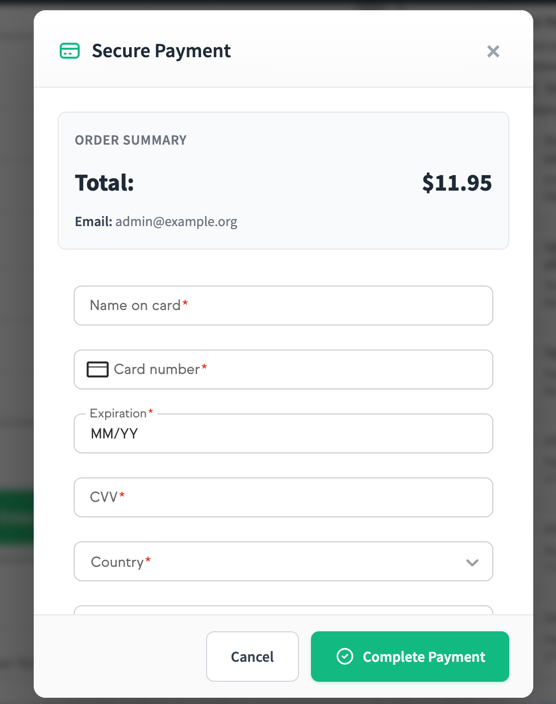
WooCommerce Blocks Checkout
The gateway fully supports the new WooCommerce Blocks-based checkout. Payment plans and subscription details render correctly in the blocks interface.
Troubleshooting
Gateway not appearing at checkout
- Verify it’s enabled in WooCommerce > Settings > Payments
- Check that your Keap merchant account is active
- Make sure your InfusedWoo connection is active (check the header badge)
Payment fails with “Unable to process”
- Verify your Keap merchant account has a valid payment processor
- Check if the card type is supported by your merchant account
- Review the error details in Settings > Logs with logging set to “Detailed”