Import & Export
Batch import and export orders and products between WooCommerce and Keap.
This guide covers importing and exporting orders and products between WooCommerce and Keap using InfusedWoo’s batch processing wizard.
Overview
InfusedWoo’s import/export system processes items in batches driven by your browser. This design works on any hosting environment — no long-running PHP processes, no server timeouts. Closing the browser pauses the job; reopening the page lets you resume where you left off.
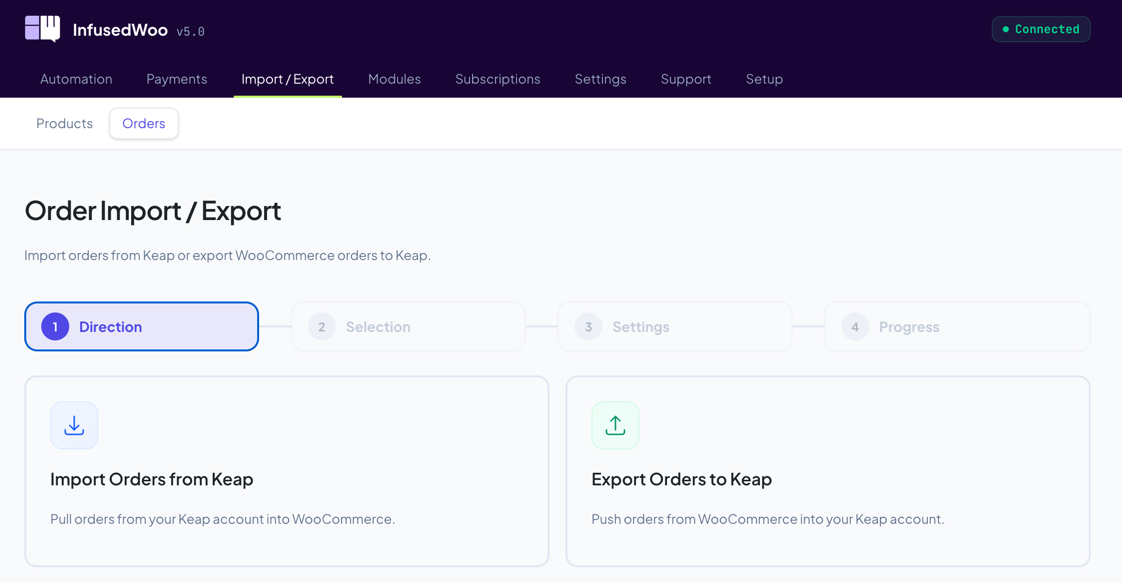
Navigate to InfusedWoo > Import / Export > Orders or Products to get started.
How It Works
- Choose direction — Import (Keap to WooCommerce) or Export (WooCommerce to Keap)
- Select what to process — All items, filter by status/date/IDs, or by category
- Configure settings — Duplicate handling, field mapping, automations
- Run — Progress bar tracks each batch; errors are logged per-item without stopping the job
Each batch is a single API call from the browser to your WordPress site. Your site fetches items from Keap (or WooCommerce), processes them, and returns the result. The browser then requests the next batch.
Order Import (Keap to WooCommerce)
Imports orders from your Keap account into WooCommerce as new orders.
Selection Options
| Mode | Description |
|---|---|
| All | Import all Keap orders (uses date filter pagination) |
| By Status | Filter by Paid or Unpaid (Draft/Sent/Viewed) |
| By Date Range | Filter by order creation date |
Settings
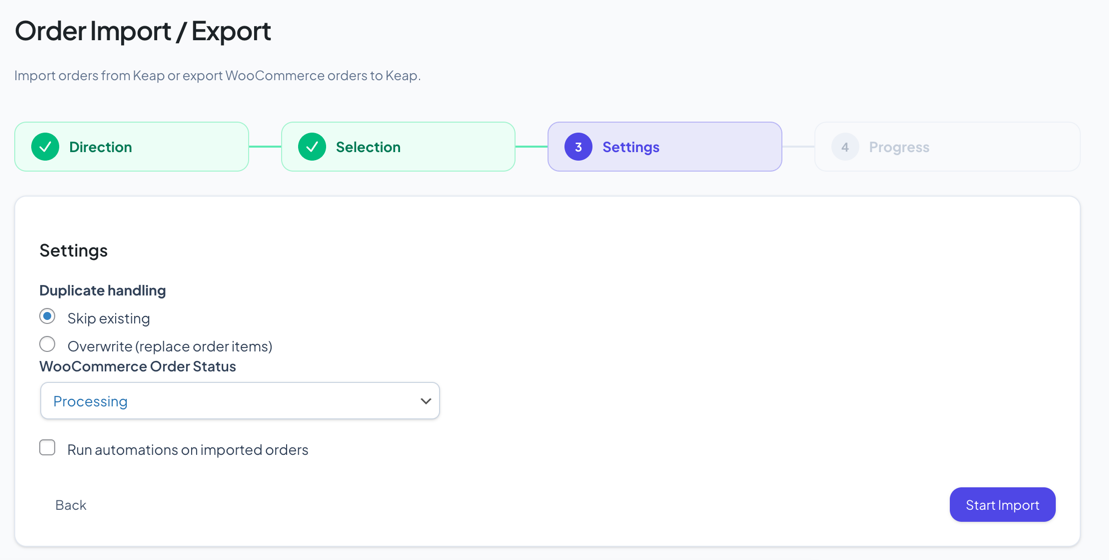
- Duplicate handling — Skip or overwrite. Skip leaves existing orders untouched. Overwrite removes all order items and re-adds them from Keap data.
- WooCommerce Order Status — The status to assign to imported orders (e.g. Processing, Completed)
- Run automations — When enabled, triggers InfusedWoo automations (tags, campaigns, recipes) for each imported order. Only enable for orders that haven’t been synced before.
What Gets Imported
For each Keap order:
- Contact info → WooCommerce billing/shipping address (loaded from Keap contact)
- Order items → WooCommerce line items (matched by
infusionsoft_productmeta or SKU) - Shipping, tax, discount items → Added as WooCommerce shipping/fee/coupon lines
- Order date → Set from Keap
creation_time - Affiliate ID → Stored in order meta
- Customer user → Matched by email if a WordPress user exists
Duplicate Detection
Orders are matched by infusionsoft_order_id meta on the WooCommerce order. If a WooCommerce order already has this meta value matching the Keap order ID, it’s considered a duplicate.
Order Export (WooCommerce to Keap)
Exports WooCommerce orders to your Keap account.
Selection Options
| Mode | Description |
|---|---|
| All | Export all WooCommerce orders |
| By Status | Filter by WooCommerce order status (Processing, Completed, etc.) |
| By Date Range | Filter by order date |
Settings
- Duplicate handling — Skip or create new. Skip checks if the order already has an
infusionsoft_order_idand verifies the Keap order still exists. - Run automations — When enabled, runs the full automation sequence after each export:
- Product-connected tags, action sets, and emails
- Campaign API goals (
woopurchaseper SKU +any) - Coupon campaign goals
- Fires the
infusedwoo_payment_completehook (triggers recipes)
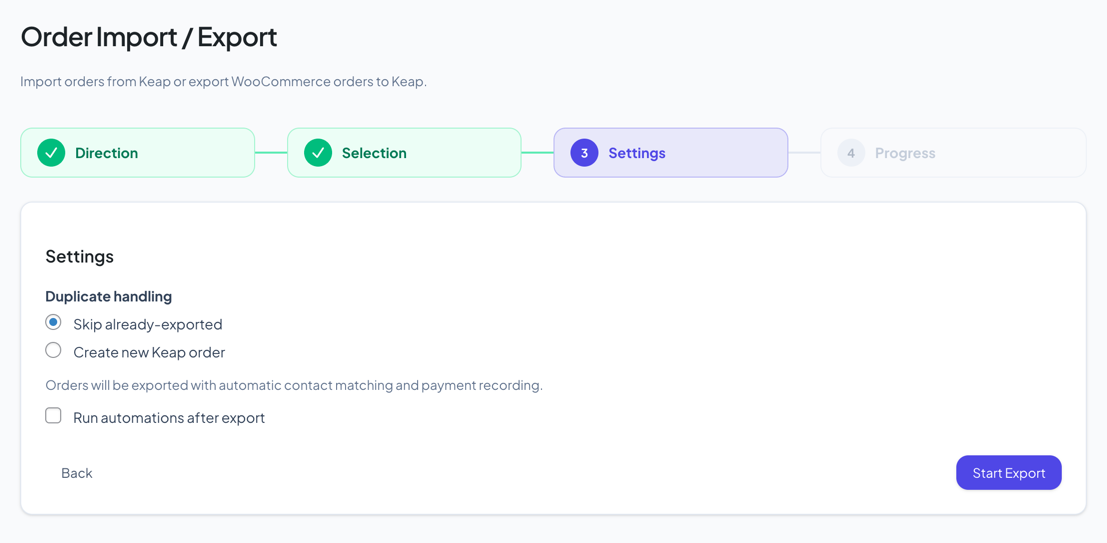
When to use “Run automations”: Enable this when exporting orders that were never synced through InfusedWoo’s normal checkout flow. If orders were already processed by InfusedWoo (via the Keap gateway or other gateways), the automations already ran — running them again would duplicate tags and goals.
What Gets Exported
For each WooCommerce order:
- Contact → Found by email in Keap, or created if not found
- Order → Created via Keap REST v2 API with all line items
- Payment → Recorded automatically if the WooCommerce order status is Processing or Completed
- Shipping → Ship-to name overrides sent if different from billing
- Metadata →
infusionsoft_order_id,infusionsoft_contact_id, view link stored on the WooCommerce order
Product Import (Keap to WooCommerce)
Imports products from your Keap account into WooCommerce.
Selection Options
| Mode | Description |
|---|---|
| All | Import all Keap products |
| By Category | Filter by Keap product category IDs |
| By IDs | Specify individual Keap product IDs |
Settings
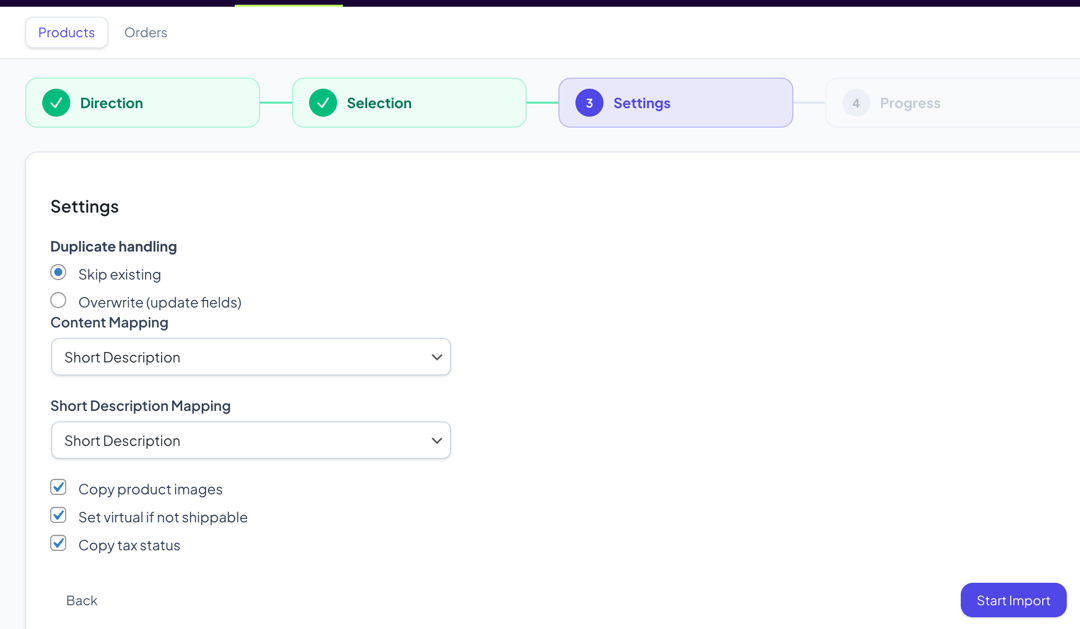
- Duplicate handling — Skip or overwrite. Products are matched by SKU first, then by
infusionsoft_productmeta. - Content mapping — Which Keap field maps to WooCommerce product description:
- Short Description
- Description
- Top HTML + Bottom HTML
- Top HTML + Description + Bottom HTML
- Short description mapping — Which Keap field maps to WooCommerce short description
- Copy product images — Downloads the product image from Keap and sets it as the WooCommerce product thumbnail. Enabling this reduces batch size from 50 to 10 (images are large).
- Set virtual if not shippable — Marks the WooCommerce product as virtual if the Keap product is not shippable
- Copy tax status — Sets the WooCommerce tax status based on the Keap taxable flag
What Gets Imported
For each Keap product:
- Product name → WooCommerce product title
- SKU →
_skumeta - Price → Regular price and price
- Weight → Product weight
- Categories → Mapped by name from Keap product categories
- Image → Downloaded from base64 and attached as product thumbnail (if enabled)
- Content → Mapped from selected Keap field(s) to post content/excerpt
Product Export (WooCommerce to Keap)
Exports WooCommerce products to your Keap account.
Selection Options
| Mode | Description |
|---|---|
| All | Export all published WooCommerce products |
| By Category | Filter by WooCommerce product category |
| By IDs | Specify individual WooCommerce product IDs |
Settings
- Duplicate handling — Skip or update. Products are matched by
infusionsoft_productmeta first, then by SKU.
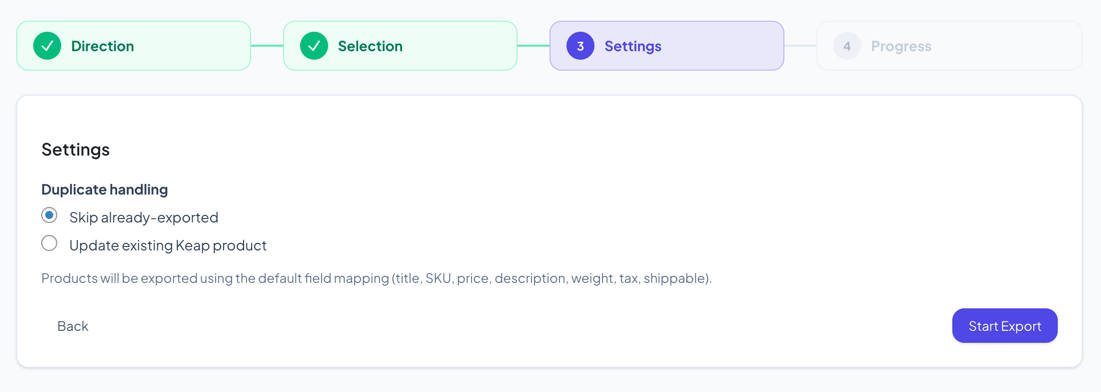
Default Field Mapping
| Keap Field | WooCommerce Source |
|---|---|
| ProductName | Product title |
| Sku | SKU |
| ProductPrice | Regular price |
| ShortDescription | Excerpt |
| Description | Post content |
| Weight | Product weight |
| Shippable | Virtual (inverted) |
| Taxable | Tax status |
Categories are also synced — created in Keap if they don’t exist, then assigned to the product.
Progress & Monitoring
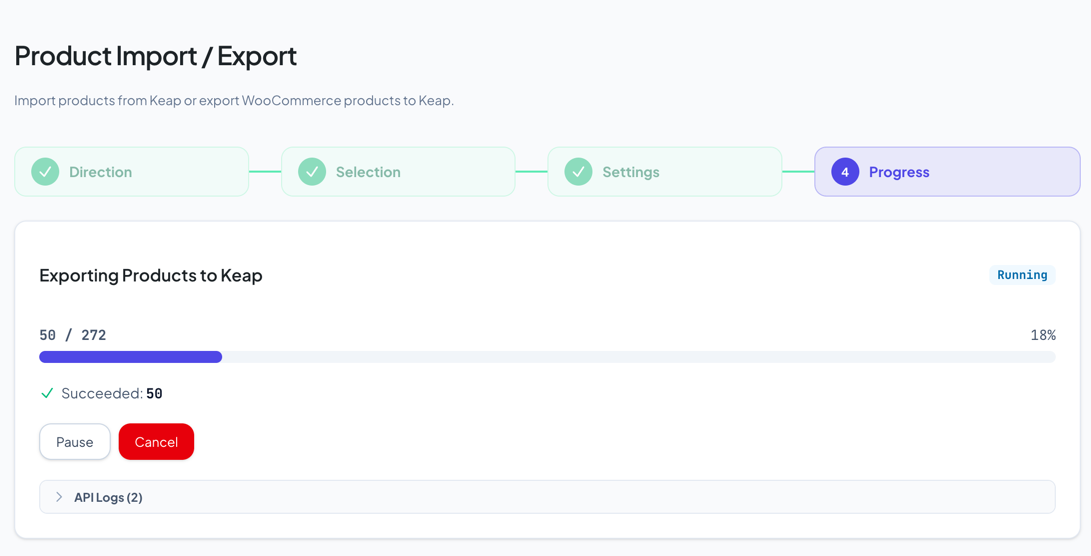
During processing, the progress step shows:
- Progress bar — Items processed / total with percentage
- Succeeded count — Items successfully processed
- Failed count — Items that encountered errors (shown in red)
- Pause / Cancel buttons — Pause stops after the current batch; Cancel ends the job
- Error log — Per-item errors with the item name and error message
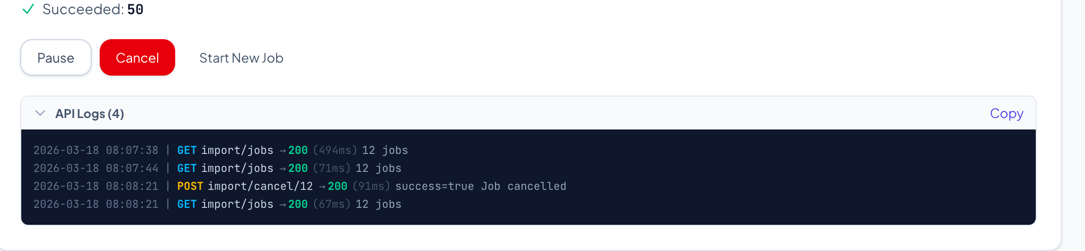
- API Logs — Collapsible panel showing every API call with response code, timing, and response summary. Click Copy to copy all logs as text for support tickets.
Batch Sizes
| Type | Batch Size |
|---|---|
| Orders (import/export) | 25 |
| Products (without images) | 50 |
| Products (with images) | 10 |
Error Handling
Individual item failures do not stop the batch. The job continues processing remaining items and logs each error. After completion, you can review the error log and use Retry Failed Items to reprocess only the items that failed.
If 3 consecutive batches return zero items (possible API issue), the job is marked as failed with a descriptive error message.
Pause & Resume
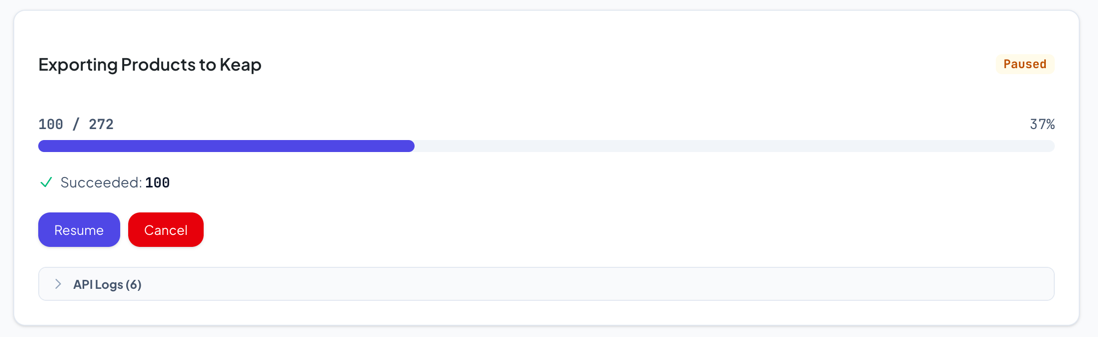
- Pause — Click Pause during processing. The current batch finishes, then the job stops. You can resume later.
- Close browser — Same effect as pausing. The job stays in the database with its cursor position saved.
- Resume — When you reopen the import/export page, InfusedWoo detects the paused job and shows a Resume button. Click it to continue from where you left off.
Job History
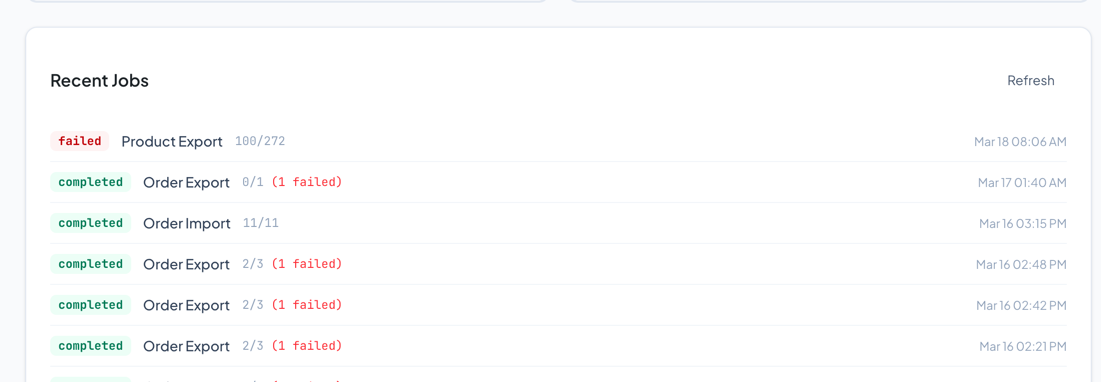
Below the wizard, the Recent Jobs section shows your last 20 import/export jobs with:
- Status badge (completed, failed, paused)
- Job type (Order Import, Product Export, etc.)
- Items processed / total
- Failure count
- Date and time
Tips
- Start with Skip mode — When importing/exporting for the first time, use Skip to avoid overwriting any existing data. Switch to Overwrite only if you need to refresh data.
- Disable automations for historical imports — If importing old Keap orders, keep “Run automations” off to avoid triggering tags and campaigns for historical data.
- Use date range for large accounts — If you have thousands of orders, filter by date range to process in manageable chunks.
- Check API Logs on failure — The API Logs panel shows the exact request and response for each batch call. Copy and send to support if you encounter unexpected errors.
- Products with images are slower — Each product image is downloaded as base64 from Keap, which increases the payload size significantly. The batch size is automatically reduced to 10 when images are enabled.
Troubleshooting
”No items found matching your selection”
- For order exports: Make sure orders exist in the selected date range or status. InfusedWoo uses WooCommerce’s order storage (HPOS compatible).
- For product imports: Verify your Keap connection is active in Settings > Keap Connection.
Job stuck at “Running” but not progressing
This happens if the browser was closed during a batch. Reopen the import/export page — it will show as Paused with a Resume button.
”Could not connect to Keap”
Your Keap API connection is not active. Go to Settings > Keap Connection and reconnect.
”3 consecutive empty batches”
The Keap API returned empty results multiple times. This can happen due to:
- Temporary Keap API issues — wait and retry
- Rate limiting — the job will resume on retry
- API timeout on large payloads (e.g. products with images) — try disabling image import
Exported order missing automation notes
Make sure “Run automations” was checked before starting the export. If the order was skipped (duplicate mode: skip), automations still run if the checkbox was enabled.