Migrating from Legacy Features
How to migrate Action Sets, Keap Email Templates, and subscription lifecycle actions to modern alternatives before the XML-RPC deprecation.
Keap is retiring its legacy XML-RPC API in December 2026. Several InfusedWoo features rely on this API and are marked with a LEGACY badge in the admin. This guide walks you through migrating each legacy feature to its modern replacement.
What’s Affected
| Legacy Feature | Where It Appears | Modern Replacement |
|---|---|---|
| Action Sets | Product Keap tab, Automation Recipes | Campaign Builder Goals or Automation Recipes |
| Keap Email Templates | Product Keap tab, Automation Recipes | Campaign Builder sequences or WooCommerce emails |
| Subscription Action Sets | Product Keap tab (subscription lifecycle) | Automation Recipes with subscription triggers |
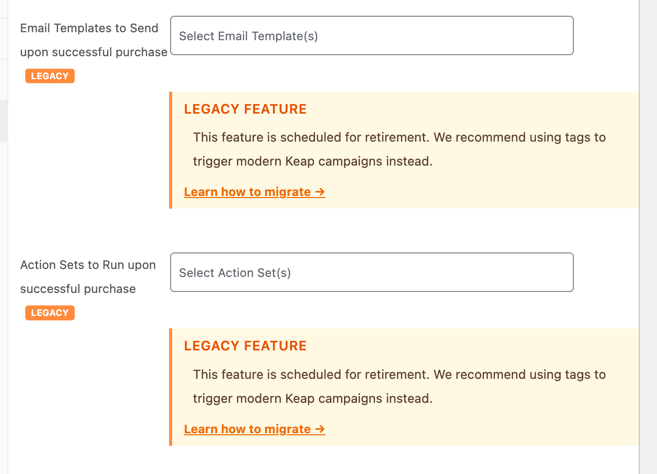
You’ll see these marked with an amber LEGACY badge and a “Learn how to migrate” link in the InfusedWoo admin.
Migrating Action Sets
What Action Sets Did
Action Sets are a legacy Keap feature that runs a predefined sequence of actions (send email, apply tag, create task, etc.) when triggered. In InfusedWoo, they could be configured:
- Per product — In Product Data > Keap tab, “Action Sets to Run upon successful purchase”
- Global — In Automation > Action Sets, “Any Product Action Set”
- In recipes — Using the “Run Action Set to Contact in Keap” action
How to Migrate
Option A: Use Campaign Builder Goals (recommended for simple workflows)
- In Keap, open Campaign Builder and create a new campaign
- Add an API Campaign Goal with:
- Integration:
woopurchase - Call Name: The product SKU (or
anyfor all purchases)
- Integration:
- Connect your sequence (emails, tags, tasks) after the goal
- Publish the campaign
- Remove the Action Set from the InfusedWoo product Keap tab
InfusedWoo automatically fires woopurchase goals on every purchase — no extra configuration needed.
Option B: Use Automation Recipes (recommended for complex logic)
- Go to InfusedWoo > Automation > Recipes and create a new recipe
- Set trigger to Purchase Trigger
- Add conditions if needed (e.g., only for specific products)
- Add actions to replace what the Action Set did:
- Apply Keap Tags — replaces tag application
- Trigger Campaign Goal — replaces campaign triggers
- Send WooCommerce Email — replaces email sends
- Update Contact Record — replaces field updates
- Activate the recipe
- Remove the Action Set from the product Keap tab
Before / After Example
Before (Action Set):
- Product “Blue Widget” has Action Set #45 configured
- Action Set #45 in Keap: Apply tag “Purchased Blue Widget”, send email template “Blue Widget Welcome”
After (Recipe):
- Recipe: “Blue Widget Purchase”
- Trigger: Purchase Trigger
- Condition: Order contains product “Blue Widget”
- Action 1: Apply tag “Purchased Blue Widget”
- Action 2: Trigger campaign goal
woopurchase/bluewidget(which starts your Keap campaign with the welcome email)
Migrating Keap Email Templates
What They Did
The “Email Templates to Send upon successful purchase” field on the product Keap tab sent a Keap email template via the legacy XML-RPC API when the product was purchased.
How to Migrate
Option A: Campaign Builder (recommended)
- Create a campaign in Keap with an API goal (
woopurchase/{SKU}) - Add your email as a sequence step after the goal
- Publish the campaign
- Remove the email template from the product Keap tab
This is better because Keap Campaign Builder handles email delivery, tracking, and unsubscribes natively.
Option B: Automation Recipe with WooCommerce Email
- Create a recipe with Purchase Trigger
- Add condition for the specific product
- Add “Send WooCommerce Email” action with your email content
- Remove the email template from the product Keap tab
Option C: Automation Recipe with Campaign Goal
- Create a recipe with Purchase Trigger
- Add “Trigger a Campaign API Goal in Keap” action
- Set it to trigger your campaign that contains the email sequence
- Remove the email template from the product Keap tab
Migrating Subscription Lifecycle Action Sets
What They Did
The product Keap tab had four Action Set fields for subscription events:
- Activated — Runs when subscription starts
- Cancelled — Runs when customer cancels
- On-Hold — Runs when subscription is suspended
- Expires — Runs when subscription expires
How to Migrate
Use Campaign Builder Goals or Automation Recipes:
Campaign Builder Goals:
| Event | Integration | Call Name |
|---|---|---|
| Activated | woosubactivated | {SKU} or any |
| Cancelled | woosubcancelled | {SKU} or any |
| Suspended | woosubsuspended | {SKU} or any |
| Expired | woosubexpired | {SKU} or any |
Create campaigns in Keap with these API goals, add your sequences, and publish.
Automation Recipes:
- Create a recipe with WooCommerce Subscription Event trigger
- Add a condition to match the specific event (activated, cancelled, etc.)
- Add your replacement actions (tags, emails, campaign goals)
- Remove the Action Set from the product Keap tab
Migration Checklist
Use this checklist to ensure nothing is missed:
- Audit current setup — List all products with Action Sets or Email Templates configured
- Create replacements — Set up Campaign Builder campaigns or Automation Recipes for each
- Test — Process a test order and verify the new workflow fires correctly
- Remove legacy config — Clear Action Set and Email Template fields from product Keap tabs
- Clear global Action Set — Go to Automation > Action Sets and clear the “Any Product” field if set
- Check recipes — Edit any recipes using “Run Action Set” or “Send Email (Keap Emailer)” actions and replace with modern equivalents
- Verify — Process another test order to confirm everything works without legacy features
Tips
- Don’t rush — You have until December 2026. Migrate one product at a time.
- Test thoroughly — Process test orders after each migration to verify the new workflow
- Campaign Goals are automatic — InfusedWoo already fires
woopurchasegoals on every purchase. You just need to create the campaigns in Keap to listen for them. - Recipes are more powerful — Unlike Action Sets, recipes support conditions, multiple actions, merge fields, and work with any trigger (not just purchases)
- Keep the old config temporarily — You can have both the legacy Action Set and the new Campaign/Recipe active during testing. Once verified, remove the legacy config.