Actions
All available recipe actions including Keap, cart, communication, and legacy actions.
Automation Recipes — Actions
Actions define what happens when a recipe’s trigger fires and all conditions pass. A recipe can have one or more actions, and they execute in order.
Adding Actions
- In Step 3 of the recipe editor, click + Add Action
- Select an action from the grouped dropdown
- Configure the action’s settings
- Click Done
Each action can be expanded for editing by clicking on it, or collapsed by clicking Done.
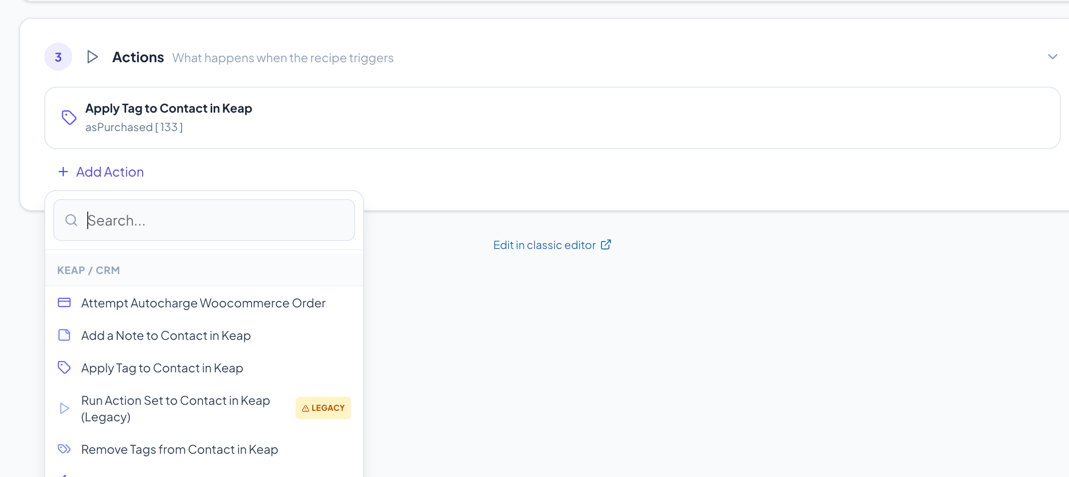
Available Actions
Keap Contact Actions
| Action | Description |
|---|---|
| Apply Keap Tags to Contact | Add one or more tags to the contact in Keap. Search and select tags, or create new tags directly. |
| Remove Keap Tags from Contact | Remove specific tags from the contact in Keap. |
| Update Contact Record in Keap | Update one or more contact fields in Keap. Add multiple field/value pairs. Supports merge fields for dynamic values. |
| Add Contact Note in Keap | Add a note to the contact record in Keap with a title and content. |
| Opt-in Email | Opt-in a contact’s email address in Keap. |
| Set Referral Partner in Keap | Assign a referral partner to the contact by ID or code. |
| Trigger a Campaign API Goal in Keap | Trigger an API Goal in a Keap campaign. Enter the Integration name and Call Name. |
Keap Order Actions
| Action | Description |
|---|---|
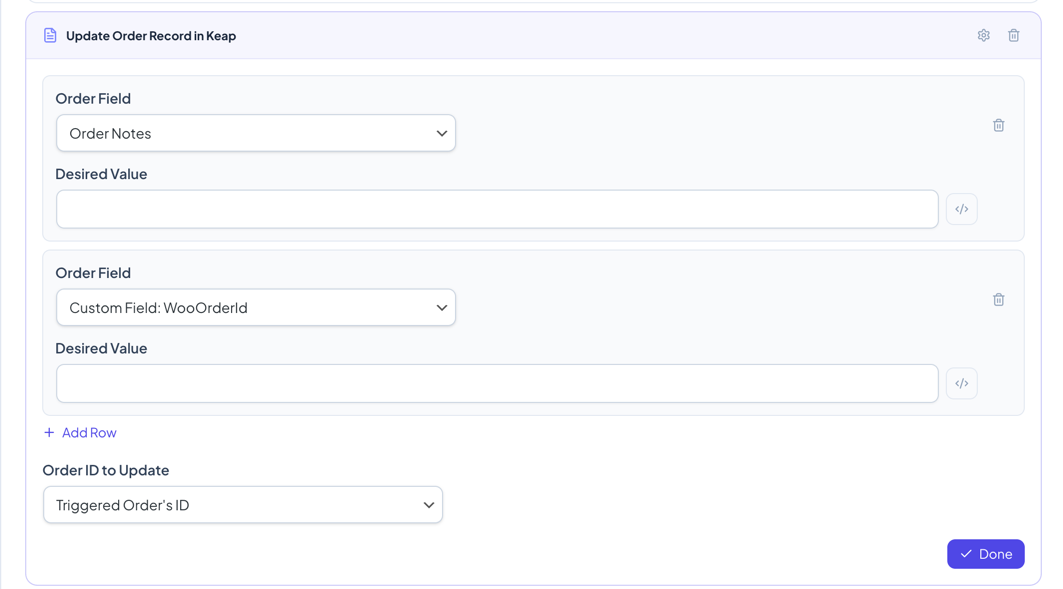
| Update Order Record in Keap | Update fields on the Keap order record. Supports triggered order ID, contact’s last order, or custom order ID. |
| Charge Credit Card in Woo Order | Charge a saved credit card on a WooCommerce order using Keap payment. |
WooCommerce Order Actions
| Action | Description |
|---|---|
| Update Order Record in WooCommerce | Update WooCommerce order fields: status, billing/shipping address, add notes, line items, fees, or custom meta. |
Cart Actions
| Action | Description |
|---|---|
| Add Custom Fee to User’s Cart | Add a fee to the cart. Amount can be fixed (e.g., 5) or percentage of subtotal (e.g., 10%). Can be taxable. |
| Give Shipping Discount | Apply a shipping discount. Default is 100% (free shipping). |
| Apply Discount to Products | Apply a discount to all products, specific products, a product category, or product type. |
| Auto-apply WooCommerce Coupon | Automatically apply a coupon code to the cart. Supports merge fields. |
| Auto-remove WooCommerce Coupon | Remove a specific coupon from the cart. |
| Remove Products from Cart | Remove products from the cart by specific product, category, or type. |
| Generate WooCommerce Coupon Code | Generate a unique coupon code from a template. Configure expiration, prefix, suffix, and length. |
Communication Actions
| Action | Description |
|---|---|
| Show Popup to User | Display a popup with a title and message. Optionally collect the customer’s email with a POST URL. |
| Show Site Notice | Display a WooCommerce-style notice to the user. |
| Send WooCommerce Email | Send an email via WooCommerce’s email system with custom recipient, subject, and content. |
| Send HTTP POST to Another Server | Send data to an external URL via HTTP POST. Configure field name/value pairs. URL and values support merge fields. |
Other Actions
| Action | Description |
|---|---|
| Redirect User | Redirect the user to a specific URL. Supports merge fields. |
| Auto-login User | Automatically log the user in by their username. |
| Set GIF Timer | Set a countdown timer for GIF-based email timers. |
| Save to WooCommerce Session | Save key/value pairs to the WooCommerce session for use in other recipes or custom code. |
| Update WordPress User Record | Update WordPress user profile fields and custom meta. |
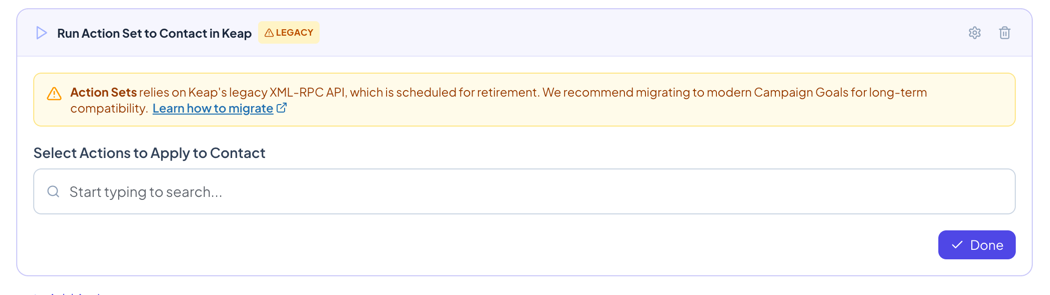
Legacy Actions
Some actions rely on Keap’s legacy XML-RPC API and are marked with a Legacy badge:
| Action | Status | Recommendation |
|---|---|---|
| Run Action Set to Contact in Keap | Legacy | Migrate to Campaign Goals |
| Send Email (Keap Emailer) | Legacy | Use WooCommerce Email or Campaign Goals |
Legacy actions show a deprecation warning when expanded, with a link to the migration guide.
Configuring Actions
Field/Value Pairs (Repeater Fields)
Several actions use field/value pair rows that support multiple entries:
- Update Contact Record in Keap — Select a contact field and enter the desired value
- Update Order Record in Keap/WooCommerce — Select an order field and enter the desired value
- Send HTTP POST — Enter field names and values
- Save to WooCommerce Session — Enter session keys and values
Click Add Row to add more pairs, and the trash icon to remove a row.
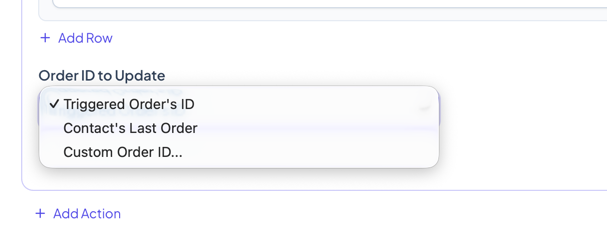
Order ID Selection
Actions that operate on orders (Update Order, Charge CC) let you choose which order to target:
- Triggered Order’s ID — The order that triggered the recipe (only available for order-based triggers)
- Contact’s Last Order / User’s Last Woo Order — The most recent order for the contact
- Custom Order ID — Enter a specific order ID or merge field (appears when selected)
Product Selection
Actions that target products (Discount, Remove from Cart) offer multiple match types:
- All products — Applies to everything
- Specific product/variation — Search and select individual products
- From certain product category — Select categories (multi-select with search)
- From certain product type — Select product types (multi-select with search)
Custom Email Override
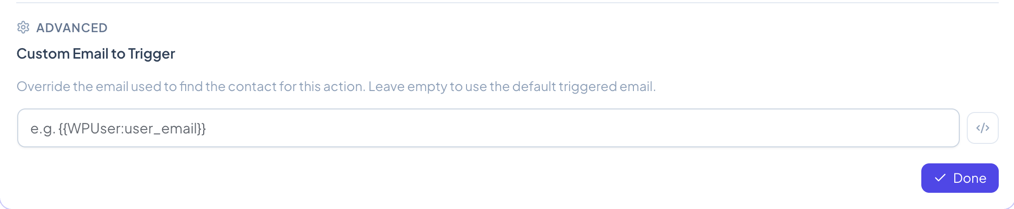
Every action has an advanced setting to override the email used for contact lookup. This is useful when the action should apply to a different contact than the one who triggered the recipe.
- Click the gear icon in the action header when expanded
- Enter a custom email or merge field (e.g.,
{{WPUser:user_email}}) - When set, a Custom Email badge appears on the collapsed card
Action Errors
If an action has missing or invalid configuration:
- A red border appears on the collapsed card
- An error message describes what needs to be fixed
- The recipe will not run until all errors are resolved
Next Steps
- Merge Fields Guide — Use dynamic values in action fields
- Advanced Features — Logs, manual triggers, and more