Account & Billing
Manage your profile, company details, payment methods, and view invoices.
The Account page lets you manage your personal information, company details for invoices, payment methods, and billing history.
Navigate to Portal > Account or visit infusedwoo.com/portal/account.
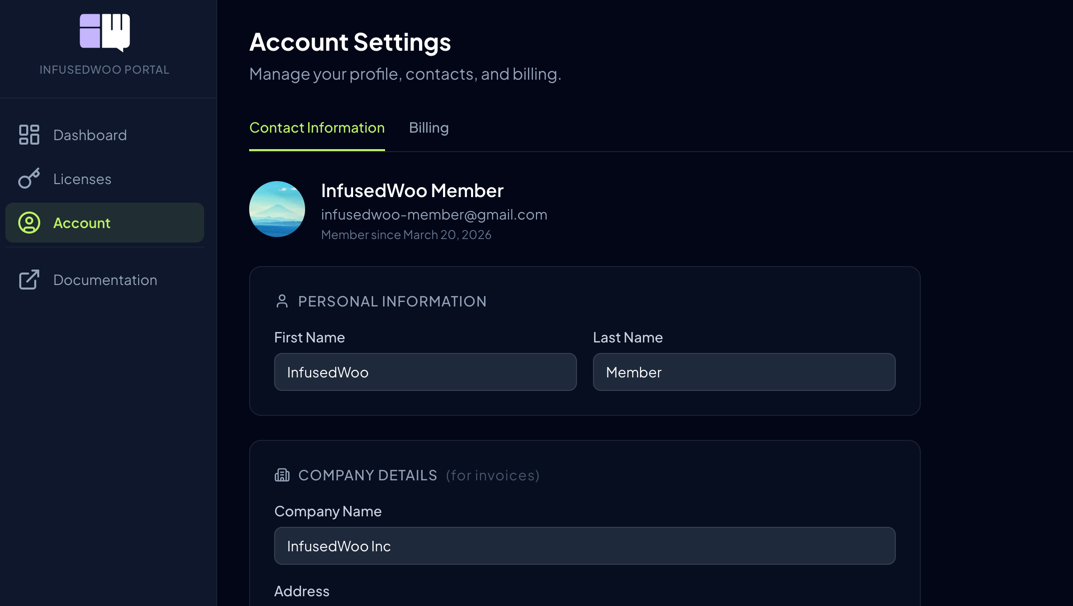
Profile
Update your personal information:
- First Name and Last Name
- Email — Your login email (see Changing Your Email below)
Changing Your Email
You can change the email address associated with your account directly from the portal:
- Go to Account and click Change next to your email address
- Enter your new email address and click Send Verification
- Check your new inbox for a verification email from InfusedWoo
- Click the Verify New Email button in the email
- You’ll be logged out — sign in again using your new email
What gets updated:
- Your login email (magic links will be sent to the new address)
- Your Stripe billing email (future receipts go to the new address)
- Google OAuth will be unlinked (you can re-link from the new email)
Good to know:
- The verification link expires in 1 hour
- If you have a billing manager set up, you’ll need to update the billing manager email separately
- Your licenses, invoices, and all account history remain unchanged
Company Details
Company information appears on your invoices. All fields are optional:
- Company Name
- Address
- City and State
- VAT / Tax ID
These details are saved to your account and automatically applied to future invoices.
Payment Methods
Manage the credit cards saved to your account:
- View saved cards — See the last 4 digits, brand, and expiry
- Set default — Choose which card is used for auto-renewals
- Add new card — Add a payment method for future purchases
- Remove card — Delete a saved card
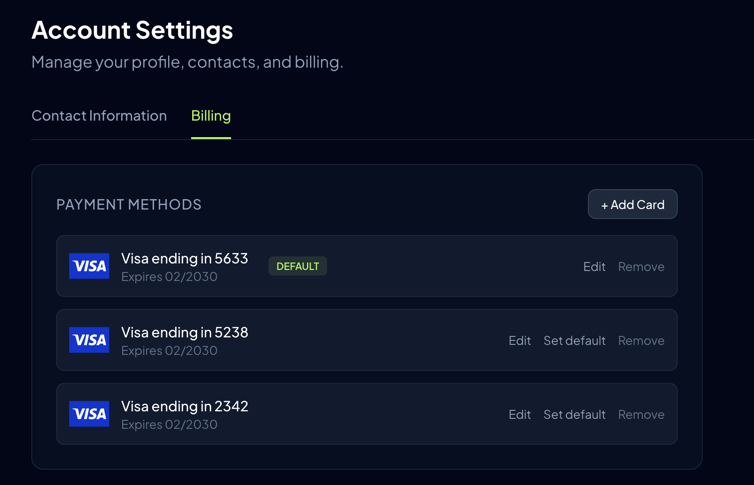
Note: At least one payment method is required for auto-renewal to work. If your card expires, you’ll receive a reminder email to update it.
Invoices
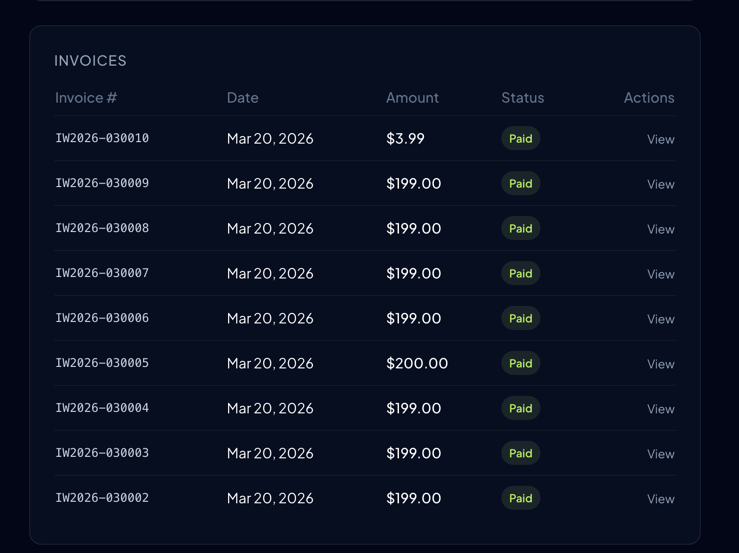
View all your purchase and renewal invoices:
- Invoice number — Unique identifier (e.g., IW2026-030001)
- Date and Amount
- Status — Paid or Open
- Description — What the invoice is for
- Click an invoice to view the full details and print it
Printing an Invoice
To print or save an invoice as PDF:
- Click the invoice from the list to open it
- Click the Print button in the bottom-right corner
- Your browser’s print dialog will open — choose your printer or select “Save as PDF”
Billing Manager Access
You can grant another person (e.g., an accountant or assistant) access to manage billing on your account:
- Go to Account
- Under Billing Manager, enter their email address
- They’ll receive a magic link to access your billing and invoices
- Billing managers can view invoices, update payment methods, and manage renewals — but cannot download the plugin or manage domains
Signing Out
Click Sign Out in the sidebar to end your session. This clears your session cookie securely.