How to Sync WooCommerce Customers to Keap in Under 5 Minutes
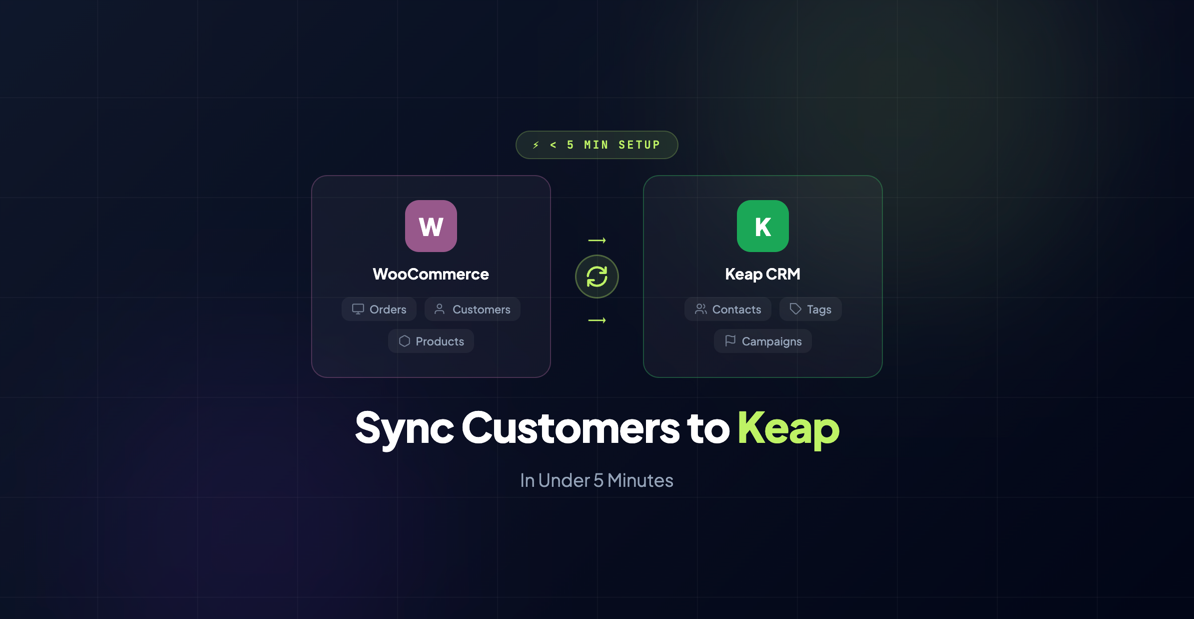
One of the most common questions we hear from store owners is: “How hard is it to connect WooCommerce to Keap?” The answer might surprise you — it takes about as long as making a cup of coffee. And unlike Zapier workarounds or custom API integrations, you won’t need to babysit it afterward.
Let’s walk through the whole process, start to finish.
What You’ll Need
Before we dive in, make sure you have:
- A WordPress site with WooCommerce installed and active
- A Keap account (any plan works — Max, Max Classic, or Ultimate)
- Admin access to both
That’s it. No API keys to hunt down, no webhook URLs to configure, no developer required.
Step 1: Install InfusedWoo
Head to your WordPress dashboard and navigate to Plugins > Add New. Search for “InfusedWoo” or, if you’ve purchased a license from our site, upload the plugin zip file directly.
Click Install Now, then Activate.
You’ll see a new “InfusedWoo” menu item appear in your WordPress sidebar. That’s your command center for everything sync-related.
Step 2: Connect to Keap
Click on InfusedWoo > Settings in your WordPress sidebar. You’ll see a big, friendly “Connect to Keap” button. Click it.
This opens Keap’s OAuth authorization screen. You’ll log in with your Keap credentials and grant InfusedWoo permission to access your account. This is the same secure authorization flow that Keap uses for all its integrations — your password is never shared with us.
Once you authorize, you’ll be redirected back to your WordPress site. You should see a green “Connected” status with your Keap account name displayed.
That’s the hardest part, and it took about 30 seconds.
Step 3: Configure What Syncs
InfusedWoo syncs the following data automatically by default:
Contacts
When someone places an order, creates an account, or checks out as a guest, their contact information is created or updated in Keap. This includes:
- Name, email, phone
- Billing and shipping addresses
- Any custom fields you’ve mapped
Orders
Every WooCommerce order syncs to Keap as a purchase record. This means you can see a customer’s complete purchase history right inside Keap — what they bought, when, and how much they spent.
Tags
This is where the magic starts. InfusedWoo can automatically apply Keap tags based on purchases, product categories, order totals, and more. We’ll cover this in detail in our automation recipes guide, but even the default tag sync is powerful.
You can customize all of this under InfusedWoo > Sync Settings. Want to skip guest checkouts? There’s a toggle for that. Want to map a WooCommerce custom field to a Keap custom field? You can set that up in the field mapping section.
For most stores, the defaults work great out of the box. You can always fine-tune later.
Step 4: Verify the Sync
The best way to confirm everything is working: place a test order on your store. You can use WooCommerce’s cash-on-delivery payment method or a test/sandbox payment gateway to avoid actual charges.
After placing the order, head over to Keap and search for the customer email you used. You should see:
- The contact record with all the details from checkout
- The order recorded in their purchase history
- Any default tags applied
If everything shows up — congratulations, you’re synced. The whole process from plugin install to verified sync typically takes 3-5 minutes.
What About Existing Customers?
Great question. When you install InfusedWoo, it starts syncing new activity immediately. But what about the customers already in your WooCommerce database?
You have two options:
Option A: Historical Sync (Recommended)
InfusedWoo includes a historical sync feature that pushes your existing WooCommerce customers and their order history to Keap. Navigate to InfusedWoo > Tools > Historical Sync and click “Start Sync.”
Depending on how many customers you have, this can take anywhere from a few minutes to a few hours. It runs in the background, so you can close the tab and come back later. The progress bar will show you where things stand.
Option B: CSV Export/Import
If you prefer more control, you can export your WooCommerce customers as a CSV and import them directly into Keap. This works well if you want to clean up your data first — fix typos, remove test orders, merge duplicates — before it hits your CRM.
WooCommerce has a built-in customer export under WooCommerce > Reports > Customers > Export. Keap’s import tool handles CSV files and lets you map columns to fields.
For most stores, Option A is the way to go. It preserves order history and purchase data, which gives you richer segmentation options right away.
Common Questions
Does it sync in real time? Yes. When an order is placed, the data syncs to Keap within seconds. No delays, no batch processing, no “check back in an hour.”
What if a customer already exists in Keap? InfusedWoo matches by email address. If a contact with that email already exists in Keap, it updates the existing record rather than creating a duplicate. Your data stays clean.
Will it slow down my store? No. The sync happens asynchronously — your customers won’t notice any difference in checkout speed. The heavy lifting happens in the background after the order is confirmed.
What about refunds and cancellations? Order status changes sync too. If you refund an order in WooCommerce, that status update is reflected in Keap, so your reporting stays accurate.
Next Steps
Now that your data is flowing, the real fun begins. Here are a few things to try:
- Set up a welcome email sequence in Keap for new customers. InfusedWoo tags make it easy to trigger these automatically.
- Create customer segments based on purchase history — first-time buyers, repeat customers, big spenders.
- Explore automation recipes to tag customers based on what they buy. Check out our automation guide for step-by-step walkthroughs.
For detailed configuration options, field mapping, and advanced sync settings, visit our installation docs.
Need help getting set up? Our support team has helped thousands of store owners connect WooCommerce to Keap. Reach out anytime — we’re happy to help.