Build a Post-Purchase Upsell Funnel with InfusedWoo and Keap
The first sale is the hardest. Getting a customer to pull out their credit card, trust your store, and click “Place Order” takes real work — ads, content, social proof, a good product page, a smooth checkout.
So why would you stop there?
The moments immediately after a purchase are some of the highest-intent moments in ecommerce. Your customer just said yes. They trust you. Their payment info is on file. This is the perfect time to offer them something else they’ll love.
In this tutorial, we’ll build a complete post-purchase upsell funnel using InfusedWoo and Keap. Three layers, working together: one-click upsells at checkout, a follow-up email sequence in Campaign Builder, and automation recipes to segment and tag buyers for ongoing marketing.
Let’s get into it.
Layer 1: One-Click Upsells at Checkout
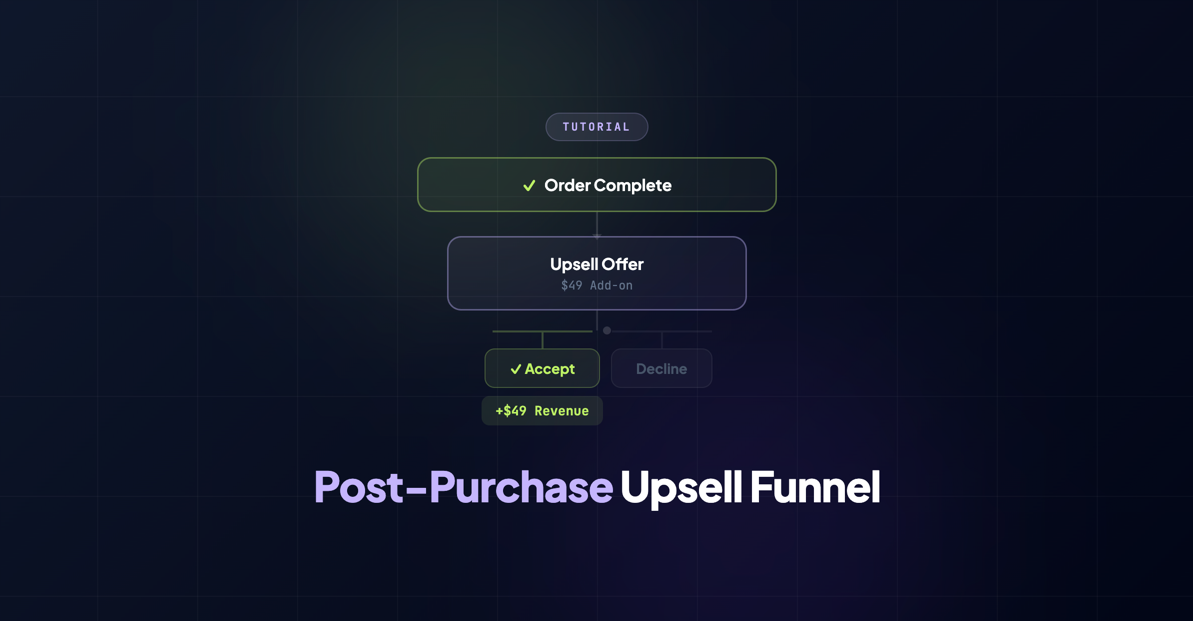
For post-purchase upsells, we recommend Rocket One-Click — a companion plugin that works alongside InfusedWoo and Keap. When a customer completes their purchase via the Keap Payment Gateway, instead of the default thank you page they see your upsell offer. Because their card is already on file with Keap, they can accept with a single click — no re-entering payment details.
This removes the biggest friction point in upselling. The customer doesn’t have to think about whether they want to go through checkout again. They just tap “Yes, add this to my order.”
Rocket One-Click has its own Keap integration built in — you can apply tags on accept or decline, fire Campaign Builder API goals, and even run action sets. This means every upsell event flows into your Keap campaigns and segmentation.
Setting It Up
- Install Rocket One-Click and connect it to your Keap account in Rocket One-Click > Settings
- Go to Rocket One-Click and click New Upsell
- Set the Keap product to charge and the price
- Configure tags to apply on accept and decline (this is key for segmentation)
- Set redirect URLs for accept/decline outcomes
- Create a WordPress page for your offer using Rocket One-Click’s shortcodes (
[roc_upsell id="1"]Accept[/roc_upsell]) - Use InfusedWoo’s Thank You Page overrides to route customers to your upsell page after purchase — go to InfusedWoo > Modules > Thank You Pages, create an override with conditions (e.g., only for specific products), and set the URL to your upsell page
What to Offer
The best upsells are complementary, not random. Some patterns that work well:
- Bought a plugin license? Offer a bundle upgrade or an extended support plan.
- Bought a physical product? Offer a warranty, a carrying case, or a consumable refill.
- Bought a one-time product? Offer a subscription version at a discount.
- Bought a starter plan? Offer the pro plan at a limited-time upgrade price.
Pricing Strategy
Price the upsell at 30-50% of the original purchase price. This is the sweet spot where the offer feels like a no-brainer rather than a commitment.
If someone just spent $99, an upsell at $29-$49 feels easy. An upsell at $149 creates decision fatigue and tanks your conversion rate.
Also consider offering a time-limited discount on the upsell page. “Add this to your order in the next 10 minutes and save 20%” creates urgency without being pushy.
Layer 2: Post-Purchase Email Sequence in Campaign Builder
Not everyone will take the upsell at checkout. That’s fine. You’ve got their email, you know what they bought, and you have Keap’s Campaign Builder at your disposal.
Here’s a simple three-email sequence that works:
Email 1: Thank You (Immediately)
This isn’t a sales email. It’s a genuine thank-you with helpful content:
- Confirm what they purchased
- Link to any setup guides or getting-started resources
- Set expectations for what happens next
- Include your support contact info
This email builds goodwill and makes sure they actually use what they bought. Happy customers buy again. Confused customers don’t.
Email 2: Targeted Offer (3 Days Later)
Now that they’ve had time to use your product, send a targeted follow-up based on what they purchased. This is where InfusedWoo’s merge fields shine.
Use merge fields to personalize the email with their product name, and present a relevant upsell or cross-sell. If they bought Product A, offer Product B — the same logic as the one-click upsell, but via email for those who didn’t take the first offer.
Keep it short. One product, one CTA, one clear benefit.
Email 3: Social Proof + Last Chance (7 Days Later)
If they didn’t bite on email two, send a final nudge with social proof:
- A customer testimonial or case study related to the upsell product
- A reminder of what they’re missing
- A final deadline if you offered a discount (“This offer expires Friday”)
After this, stop. Three emails is enough. If they’re not interested, pushing harder will just annoy them.
Building It in Campaign Builder
- Start with a Purchase Goal in Campaign Builder — InfusedWoo fires this when an order is completed
- Add a sequence with your three emails, spaced with timers
- Use decision diamonds to check: did they already buy the upsell product? If yes, skip the rest of the sequence
- End with a tag application for tracking
The decision diamond is important. Nobody likes getting pitched on something they already own. InfusedWoo keeps Keap’s contact records synced with WooCommerce purchases, so the product ownership data is always current.
Layer 3: Automation Recipes for Segmentation
The first two layers handle the immediate upsell opportunity. Layer three is about building long-term customer segments that power your future marketing.
InfusedWoo’s automation recipes let you set up tag-based workflows that run automatically based on purchase behavior.
Recipe: Tag by Product Category
- Trigger: Purchase completed
- Condition: Product is in category “Plugins”
- Action: Apply tag “Customer - Plugin Buyer”
Now you have a Keap tag that identifies everyone who’s bought a plugin. You can use this tag to:
- Include them in plugin-specific promotional campaigns
- Exclude them from beginner-level nurture sequences
- Trigger a loyalty offer after their third purchase
Recipe: Tag by Order Value
- Trigger: Purchase completed
- Condition: Order total is greater than $200
- Action: Apply tag “High-Value Customer”
High-value customers deserve different treatment. Maybe they get early access to new products, a dedicated support channel, or a personal check-in email from your team.
Recipe: Tag by Repeat Purchase
- Trigger: Purchase completed
- Condition: Customer has 2+ previous orders
- Action: Apply tag “Repeat Buyer”
Repeat buyers are your most valuable segment. They’ve already proven they trust you. These are the people most likely to respond to upsells, referral programs, and premium offers.
Setting Up Recipes
- Go to WooCommerce > InfusedWoo > Automation Recipes
- Click “Add New Recipe”
- Select your trigger (Purchase Trigger is the most common)
- Add conditions using the visual builder
- Set your action (Apply Tag, Remove Tag, Update Field, etc.)
- Save — recipes auto-save as you build
For more recipe examples, check out our Automation Examples documentation.
Putting It All Together
Here’s the complete flow:
- Customer buys Product A
- One-click upsell offers Product B immediately (30-50% of original price)
- If they accept: great, they own both products. Tag them accordingly.
- If they decline: Campaign Builder sends a three-email sequence over the next week
- Meanwhile, automation recipes tag them based on category, order value, and purchase frequency
- Those tags feed into your broader marketing — future campaigns, loyalty programs, seasonal promotions
Each layer catches customers at a different point in their decision-making process. Some people buy on impulse (one-click upsell). Some need time to think (email sequence). And everyone gets properly segmented for the long game (automation recipes).
Quick Tips
- Test your upsell flow yourself before launching. Place a test order and experience the entire funnel as a customer.
- Monitor your upsell acceptance rate. If it’s below 5%, experiment with the offer, the price, or the product pairing.
- Don’t upsell everything. Pick your top 3-5 product pairings and focus on those. Quality over quantity.
- Respect the “no.” If a customer declines the upsell and ignores all three emails, that’s a clear signal. Don’t keep pushing.
The post-purchase window is a goldmine that most WooCommerce stores leave completely untapped. With InfusedWoo and Keap working together, you can capture that value automatically — no manual follow-ups, no guesswork.
For detailed setup instructions, see our Automation Examples documentation. For one-click upsells, check out Rocket One-Click — a companion plugin that works alongside InfusedWoo and Keap.